Printer Driver
Choose Your Printer Brand






Printer Driver Update
A printer is only as reliable as the software that controls it. That software—known as the printer driver—acts as a bridge between your computer and the printer, translating your commands into a language the device understands. Keeping this driver up to date is essential for smooth performance, fewer errors, and access to the latest features.
What is a Printer Driver?
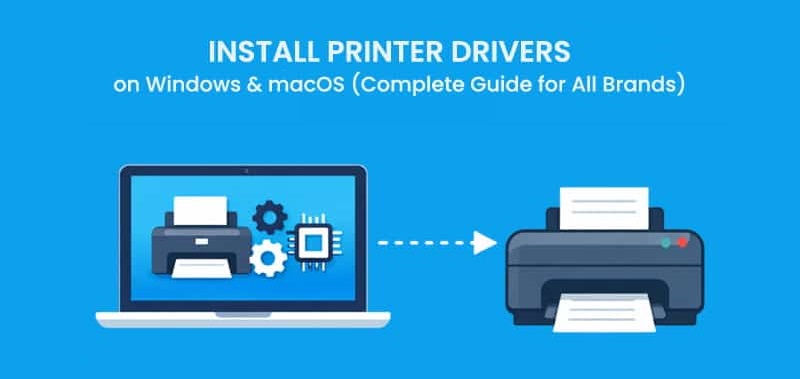
A printer driver is a small program installed on your computer that allows your operating system to communicate with your printer. Without it, your system wouldn’t know how to process print commands correctly. Every printer model requires a specific driver designed for its hardware and capabilities.
Why Updating Your Printer Driver is Important
Updating your printer driver isn’t just a routine task—it directly affects how well your printer performs. Here’s why it matters:
1. Improved Performance
New driver versions often include optimizations that make printing faster and more efficient.
2. Bug Fixes
If you’ve been experiencing issues like printing errors, crashes, or missing print jobs, an updated driver can resolve these problems.
3. Compatibility with New Systems
Operating systems are constantly evolving. Updated drivers ensure your printer works smoothly with the latest Windows or macOS updates.
4. Enhanced Features
Manufacturers sometimes add new settings or improve print quality through driver updates.
5. Better Security
Outdated drivers can have vulnerabilities. Updating helps protect your system from potential security risks.
Signs You Need a Driver Update
Not sure if your printer driver needs updating? Look out for these common signs:
- Frequent error messages while printing
- Printer not responding or going offline
- Poor print quality or incorrect formatting
- Missing printer options in settings
- System updates causing printing issues
How to Update a Printer Driver
Updating a printer driver is usually straightforward. Here are the most effective methods:
Method 1: Use Device Manager (Windows)
Press Windows + X and select Device Manager
Expand the Printers section
Right-click your printer and choose Update driver
Select Search automatically for drivers
Method 2: Download from Manufacturer Website
- Visit the official website of your printer brand (e.g., HP, Canon, Epson)
- Search for your printer model
- Download the latest driver for your operating system
- Install it by following the on-screen instructions
Method 3: Use Built-in System Updates
Both Windows and macOS provide automatic updates:
Windows Update: Go to Settings → Update & Security → Check for updates
macOS Software Update: Go to System Settings → General → Software Update
Method 4: Use Driver Update Tools
There are third-party tools that scan your system and update outdated drivers automatically. While convenient, make sure to use trusted software to avoid security risks.
Tips for a Smooth Driver Update
- Always download drivers from official sources
- Ensure compatibility with your operating system version
- Restart your computer after installation
- Remove old or unused printer drivers to avoid conflicts
- Keep your printer firmware updated alongside drivers
Common Mistakes to Avoid
- Installing the wrong driver for your printer model
- Ignoring system compatibility requirements
- Interrupting the installation process
- Using unreliable third-party websites
Updating your printer driver is a simple yet powerful way to maintain your printer’s performance and reliability. Whether you’re troubleshooting an issue or just keeping your system up to date, regular driver updates can save you time and frustration in the long run.
Frequently Asked Questions
Why is my printer showing offline even though it is connected?
A printer may appear offline due to network connection issues, outdated drivers, or incorrect printer settings. Restarting the printer, checking the Wi-Fi connection, and setting the printer as the default device can often resolve this problem.
How do I connect my printer to Wi-Fi?
To connect your printer to Wi-Fi, open the printer’s control panel, go to **Network or Wireless Settings**, and select your Wi-Fi network. Enter the password and complete the setup. You may also install the printer software on your computer to finish the configuration.
Why is my printer not printing even though it has ink?
This issue may occur due to clogged printheads, outdated drivers, incorrect printer settings, or a paused print queue. Cleaning the printheads and updating the drivers usually helps resolve the problem.
How do I fix a paper jam in my printer?
Turn off the printer and carefully remove the jammed paper from the input or output tray. Check for any torn pieces inside the printer and gently remove them before restarting the device.
How do I update my printer drivers?
You can update your printer drivers by visiting the official website of your printer manufacturer, searching for your printer model, and downloading the latest driver compatible with your operating system.
Why is my wireless printer not connecting to my computer?
This problem can occur if the printer and computer are connected to different Wi-Fi networks, if the signal is weak, or if the printer drivers are outdated. Reconnecting both devices to the same network usually resolves the issue.
How often should I maintain my printer?
Regular maintenance should be performed every few months, depending on usage. This may include cleaning the printer, checking ink or toner levels, and updating software or firmware.
What should I do if my printer keeps showing error messages?
If your printer repeatedly shows error messages, restart the device, check for driver updates, and review the error code in the printer manual or support resources. If the issue continues, professional technical support may be required.
Contact
Address
A108 Adam Street, New York, NY 535022
Call Us
+1888 510 8176
Email Us
info@fixprintererror.com