Printer Troubleshooting
Choose Your Printer Brand









Printer Troubleshooting: A Practical Guide for Smooth Printing
Printers are essential devices in homes, offices, and businesses—but they can also be frustrating when things go wrong. Whether your printer refuses to print, produces poor-quality output, or struggles to connect, most issues can be resolved with a bit of systematic troubleshooting. This guide walks you through common printer problems and how to fix them efficiently.
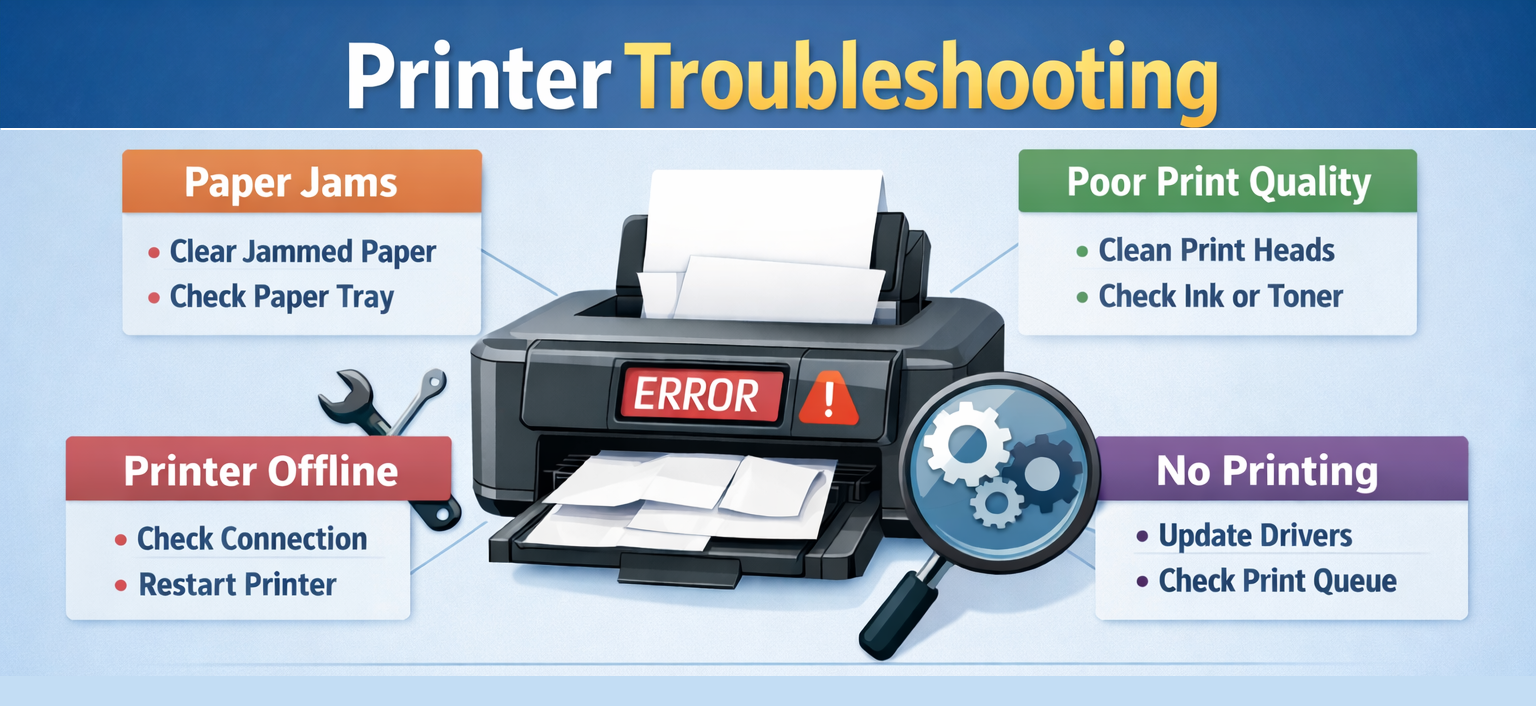
1. Printer Not Responding
One of the most common issues is when the printer simply doesn’t respond.
Possible causes:- Loose or disconnected cables
- Printer powered off
- Software or driver issues
- Network connection problems (for wireless printers)
- Check that the printer is turned on and properly connected.
- Restart both the printer and your computer.
- Ensure the correct printer is selected as the default device.
- Reinstall or update printer drivers.
- For wireless printers, confirm that both devices are on the same network.
2. Paper Jams
Paper jams can interrupt your workflow and even damage the printer if not handled properly.
Causes:- Misaligned paper
- Overfilled paper tray
- Damaged or wrinkled sheets
- Turn off the printer before removing jammed paper.
- Gently pull the paper in the direction of the feed.
- Check for small torn pieces left inside.
- Reload paper neatly and avoid overfilling the tray.
3. Poor Print Quality
If your prints are faded, streaky, or blurry, the issue likely lies with ink or toner.
Common reasons:- Low ink or toner levels
- Clogged print heads
- Incorrect print settings
- Replace or refill ink/toner cartridges.
- Run the printer’s cleaning or maintenance cycle.
- Use the correct paper type and print quality settings.
- Align the print heads through printer settings.
4. Printer Offline Error
Sometimes your computer shows the printer as “offline” even when it’s turned on.
Causes:- Network interruptions
- Incorrect printer settings
- Spooler service issues
- Set the printer to “online” mode in settings.
- Restart the print spooler service.
- Reconnect the printer to the network.
- Remove and re-add the printer to your system.
5. Slow Printing
A slow printer can affect productivity, especially in busy environments.
Reasons:- High-resolution print settings
- Large file sizes
- Limited printer memory
- Lower print quality settings for regular tasks.
- Print documents in draft mode when possible.
- Close unnecessary applications to free system resources.
- Upgrade printer memory if supported.
6. Wireless Connection Issues
Wireless printers offer convenience but can be tricky to set up and maintain.
Problems include:- Printer not detected on network
- Frequent disconnections
- Ensure stable Wi-Fi connectivity.
- Move the printer closer to the router.
- Reconfigure network settings on the printer.
- Update firmware if available.
7. Driver and Software Problems
Outdated or corrupted drivers can prevent proper communication between your computer and printer.
Fixes:- Download the latest drivers from the manufacturer’s website.
- Uninstall and reinstall printer software.
- Ensure compatibility with your operating system.
8. Unusual Noises or Mechanical Issues
Grinding or clicking sounds may indicate internal problems.
What to do:- Turn off the printer immediately.
- Check for obstructions inside the device.
- Avoid forcing any components.
- Contact professional support if the issue persists.
Final Tips for Preventing Printer Issues
- Regularly clean your printer and keep it dust-free.
- Use high-quality paper and compatible ink/toner.
- Turn off the printer properly when not in use.
- Keep software and firmware updated.
Printer problems can be inconvenient, but most are easy to diagnose and fix with a structured approach. By understanding common issues and applying simple troubleshooting steps, you can save time, reduce frustration, and extend the life of your printer.
Frequently Asked Questions
Why is my printer showing offline even though it is connected?
A printer may appear offline due to network connection issues, outdated drivers, or incorrect printer settings. Restarting the printer, checking the Wi-Fi connection, and setting the printer as the default device can often resolve this problem.
How do I connect my printer to Wi-Fi?
To connect your printer to Wi-Fi, open the printer’s control panel, go to **Network or Wireless Settings**, and select your Wi-Fi network. Enter the password and complete the setup. You may also install the printer software on your computer to finish the configuration.
Why is my printer not printing even though it has ink?
This issue may occur due to clogged printheads, outdated drivers, incorrect printer settings, or a paused print queue. Cleaning the printheads and updating the drivers usually helps resolve the problem.
How do I fix a paper jam in my printer?
Turn off the printer and carefully remove the jammed paper from the input or output tray. Check for any torn pieces inside the printer and gently remove them before restarting the device.
How do I update my printer drivers?
You can update your printer drivers by visiting the official website of your printer manufacturer, searching for your printer model, and downloading the latest driver compatible with your operating system.
Why is my wireless printer not connecting to my computer?
This problem can occur if the printer and computer are connected to different Wi-Fi networks, if the signal is weak, or if the printer drivers are outdated. Reconnecting both devices to the same network usually resolves the issue.
How often should I maintain my printer?
Regular maintenance should be performed every few months, depending on usage. This may include cleaning the printer, checking ink or toner levels, and updating software or firmware.
What should I do if my printer keeps showing error messages?
If your printer repeatedly shows error messages, restart the device, check for driver updates, and review the error code in the printer manual or support resources. If the issue continues, professional technical support may be required.
Contact
Address
A108 Adam Street, New York, NY 535022
Call Us
+1888 510 8176
Email Us
info@fixprintererror.com