Printer Offline
Choose Your Printer Brand








Fix Printer Offline: A Simple Guide to Get Your Printer Back Online
Seeing your printer marked as “offline” can be frustrating—especially when you need to print something urgently. This issue is quite common and usually doesn’t mean your printer is broken. In most cases, it’s caused by minor connection or setting problems that can be fixed quickly.
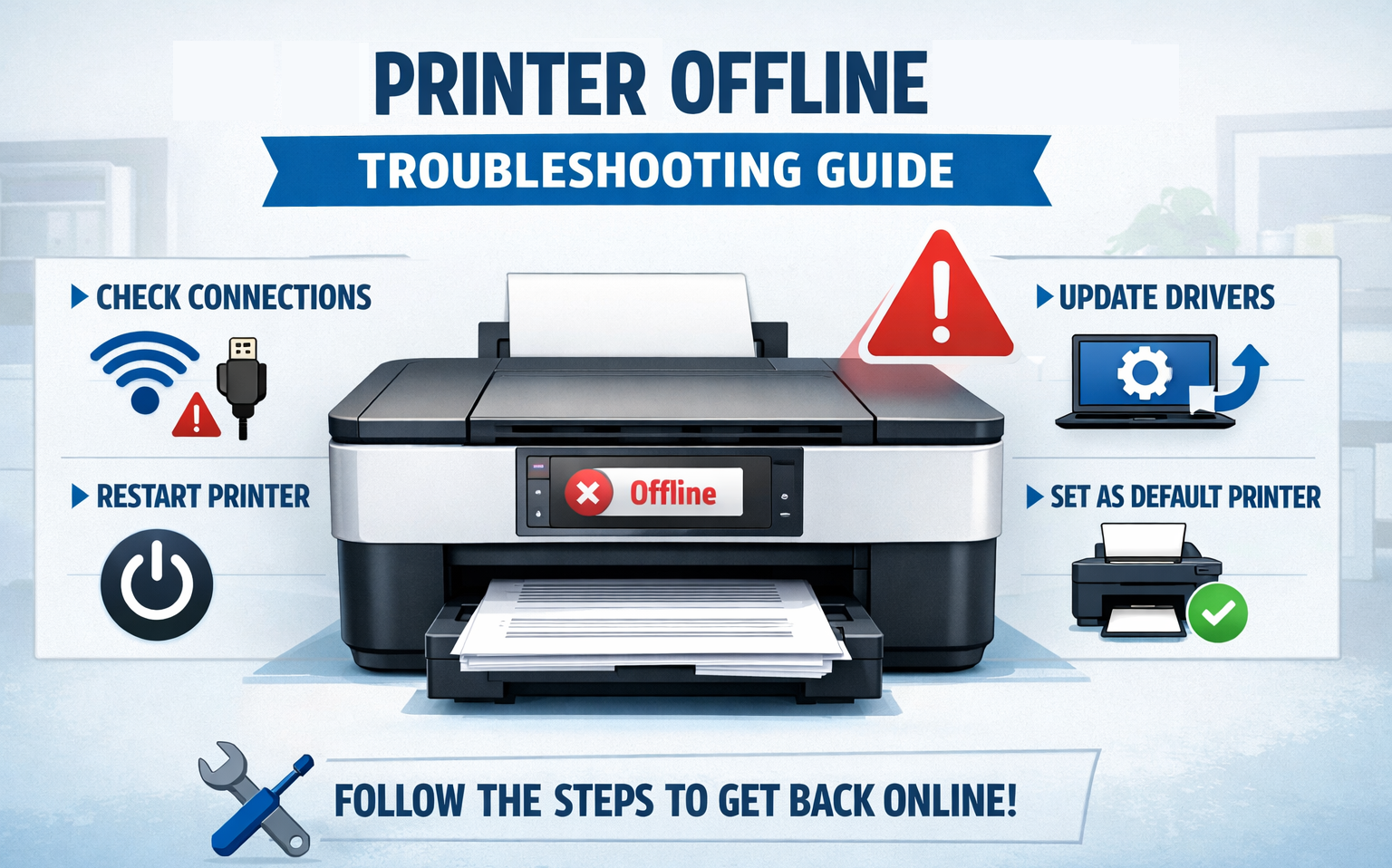
What Does “Printer Offline” Mean?
When your printer shows as offline, it means your computer is unable to communicate with the printer. Even if the device is turned on, your system may not recognize it as available for printing.
Common Reasons Why Your Printer Goes Offline
Before jumping into solutions, it helps to understand what might be causing the issue:
- Loose or disconnected cables
- Weak or unstable Wi-Fi connection
- Printer set to “Use Printer Offline” mode
- Outdated or corrupted drivers
- Print spooler errors
- Incorrect default printer settings
Step-by-Step Solutions to Fix Printer Offline
1. Check Basic Connections
Start with the simplest step:
- Make sure your printer is turned on
- Check USB or Ethernet cables for proper connection
- For wireless printers, confirm it’s connected to the correct Wi-Fi network
2. Restart Your Devices
A restart can clear temporary glitches.
- Turn off your printer and unplug it
- Restart your computer
- Turn the printer back on after a minute
3. Set Printer as Default
If your system is trying to use a different printer, it may show yours as offline.
- Go to Control Panel → Devices and Printers
- Right-click your printer
- Select Set as default printer
4. Disable “Use Printer Offline” Mode
- Open Devices and Printers
- Double-click your printer
- Click on Printer in the top menu
- Uncheck Use Printer Offline
5. Clear the Print Queue
Pending or stuck print jobs can cause offline issues.
- Open your printer queue
- Cancel all pending documents
- Restart the printer
6. Restart the Print Spooler Service
- Press Windows + R, type `services.msc`, and press Enter
- Locate Print Spooler
- Right-click and select Restart
7. Update or Reinstall Printer Drivers
Outdated drivers often cause offline errors.
- Open Device Manager
- Find your printer under “Printers”
- Right-click and select Update driver
If the issue persists:
- Uninstall the printer
- Restart your computer
- Reinstall the latest driver from the manufacturer’s website
8. Check Network Settings (For Wi-Fi Printers)
- Ensure your printer and computer are on the same network
- Restart your router if needed
- Assign a static IP address to your printer for a stable connection
When the Problem Still Isn’t Fixed
If none of the above methods work, consider:
- Running your printer’s built-in diagnostic tool
- Checking for firmware updates
- Contacting the printer manufacturer’s support team
A printer showing offline is usually a temporary issue caused by connection or software glitches—not a serious fault. By following these simple steps—checking connections, restarting devices, adjusting settings, and updating drivers—you can quickly bring your printer back online.
Frequently Asked Questions
Why is my printer showing offline even though it is connected?
A printer may appear offline due to network connection issues, outdated drivers, or incorrect printer settings. Restarting the printer, checking the Wi-Fi connection, and setting the printer as the default device can often resolve this problem.
How do I connect my printer to Wi-Fi?
To connect your printer to Wi-Fi, open the printer’s control panel, go to **Network or Wireless Settings**, and select your Wi-Fi network. Enter the password and complete the setup. You may also install the printer software on your computer to finish the configuration.
Why is my printer not printing even though it has ink?
This issue may occur due to clogged printheads, outdated drivers, incorrect printer settings, or a paused print queue. Cleaning the printheads and updating the drivers usually helps resolve the problem.
How do I fix a paper jam in my printer?
Turn off the printer and carefully remove the jammed paper from the input or output tray. Check for any torn pieces inside the printer and gently remove them before restarting the device.
How do I update my printer drivers?
You can update your printer drivers by visiting the official website of your printer manufacturer, searching for your printer model, and downloading the latest driver compatible with your operating system.
Why is my wireless printer not connecting to my computer?
This problem can occur if the printer and computer are connected to different Wi-Fi networks, if the signal is weak, or if the printer drivers are outdated. Reconnecting both devices to the same network usually resolves the issue.
How often should I maintain my printer?
Regular maintenance should be performed every few months, depending on usage. This may include cleaning the printer, checking ink or toner levels, and updating software or firmware.
What should I do if my printer keeps showing error messages?
If your printer repeatedly shows error messages, restart the device, check for driver updates, and review the error code in the printer manual or support resources. If the issue continues, professional technical support may be required.
Contact
Address
A108 Adam Street, New York, NY 535022
Call Us
+1888 510 8176
Email Us
info@fixprintererror.com