Printer WiFi Setup
Choose Your Printer Brand








Printer WiFi Setup: A Complete Step-by-Step Guide
Setting up a printer on WiFi has become an essential part of modern home and office environments. Wireless printing eliminates the need for messy cables, allows multiple devices to connect easily, and provides greater flexibility in where you place your printer. Whether you are using a new printer or converting an existing one to a wireless setup, the process is usually simple if you follow the right steps.
Understanding WiFi Printing
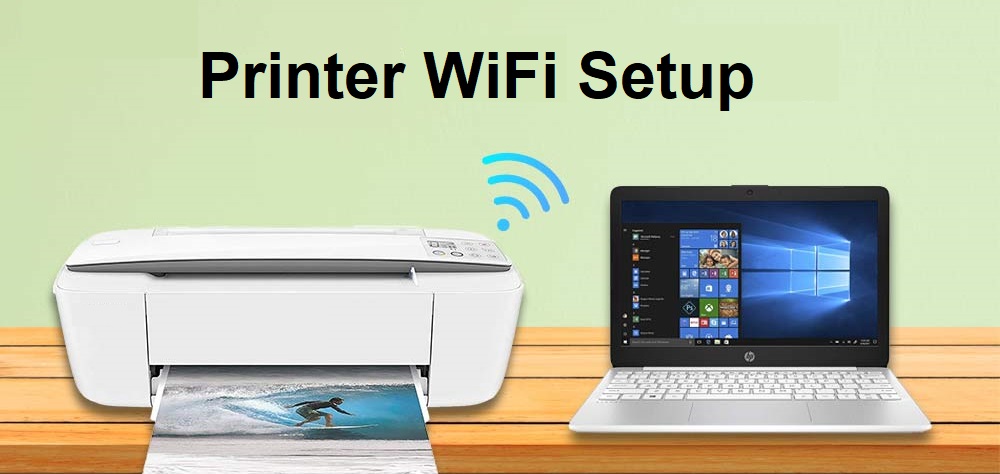
WiFi printing allows your printer to connect to a wireless network instead of relying on a direct cable connection. Once connected, any device on the same network—such as a laptop, smartphone, or tablet—can send print jobs without physically connecting to the printer.
Most modern printers come with built-in wireless capabilities. These printers are often labeled as “wireless,” “WiFi-enabled,” or “all-in-one” devices.
Preparing for Setup
- A stable WiFi network
- Network name (SSID) and password
- A compatible device (computer or smartphone)
- Printer powered on and placed within WiFi range
Methods to Set Up Printer WiFi
There are several ways to connect your printer to WiFi, depending on the model and brand.
1. Using the Printer Control Panel
Many printers have a built-in screen that makes setup easy:
- Turn on the printer
- Navigate to the “Settings” or “Network” menu
- Select “Wireless Setup Wizard”
- Choose your WiFi network from the list
- Enter the password
- Confirm and wait for connection
2. Using WPS (WiFi Protected Setup)
This is one of the fastest methods:
- Press the WPS button on your router
- Within two minutes, press the WPS button on your printer
- The devices will automatically connect
3. Using a Computer or Mobile App
Most printer brands provide software or apps:
- Install the printer software on your computer or phone
- Open the setup application
- Follow on-screen instructions
- Select your WiFi network and enter the password
4. USB Setup Method
If wireless setup fails, you can use a temporary USB connection:
- Connect the printer to your computer via USB cable
- Install printer drivers
- Open printer settings
- Choose “Convert to Wireless” or similar option
- Disconnect USB once setup is complete
Adding Printer to Your Device
After connecting the printer to WiFi, you need to add it to your device:
- On Windows: Go to “Settings” → “Devices” → “Printers & Scanners” → “Add Printer”
- On Mac: Open “System Settings” → “Printers & Scanners” → Click “+”
- On smartphones: Use the print option in supported apps
Troubleshooting Common Issues
Sometimes the printer may not connect successfully. Here are some quick fixes:
- Restart the printer and router
- Ensure correct WiFi password
- Move printer closer to the router
- Update printer firmware or drivers
- Disable VPNs or firewall temporarily
Benefits of Wireless Printing
- No cable clutter
- Multiple users can print easily
- Supports mobile printing
- Flexible printer placement
- Ideal for both home and office use
Setting up a printer on WiFi is a straightforward process once you understand the available methods. Whether you use the control panel, WPS, or software setup, most printers can be connected in just a few minutes. With wireless printing, you gain convenience, efficiency, and the ability to print from virtually anywhere within your network.
Frequently Asked Questions
Why is my printer showing offline even though it is connected?
A printer may appear offline due to network connection issues, outdated drivers, or incorrect printer settings. Restarting the printer, checking the Wi-Fi connection, and setting the printer as the default device can often resolve this problem.
How do I connect my printer to Wi-Fi?
To connect your printer to Wi-Fi, open the printer’s control panel, go to **Network or Wireless Settings**, and select your Wi-Fi network. Enter the password and complete the setup. You may also install the printer software on your computer to finish the configuration.
Why is my printer not printing even though it has ink?
This issue may occur due to clogged printheads, outdated drivers, incorrect printer settings, or a paused print queue. Cleaning the printheads and updating the drivers usually helps resolve the problem.
How do I fix a paper jam in my printer?
Turn off the printer and carefully remove the jammed paper from the input or output tray. Check for any torn pieces inside the printer and gently remove them before restarting the device.
How do I update my printer drivers?
You can update your printer drivers by visiting the official website of your printer manufacturer, searching for your printer model, and downloading the latest driver compatible with your operating system.
Why is my wireless printer not connecting to my computer?
This problem can occur if the printer and computer are connected to different Wi-Fi networks, if the signal is weak, or if the printer drivers are outdated. Reconnecting both devices to the same network usually resolves the issue.
How often should I maintain my printer?
Regular maintenance should be performed every few months, depending on usage. This may include cleaning the printer, checking ink or toner levels, and updating software or firmware.
What should I do if my printer keeps showing error messages?
If your printer repeatedly shows error messages, restart the device, check for driver updates, and review the error code in the printer manual or support resources. If the issue continues, professional technical support may be required.
Contact
Address
A108 Adam Street, New York, NY 535022
Call Us
+1888 510 8176
Email Us
info@fixprintererror.com