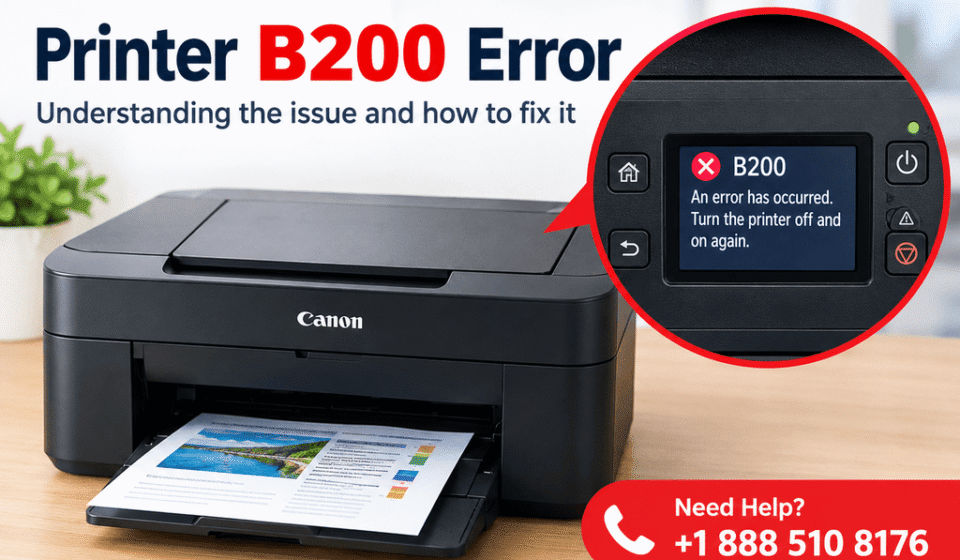

The Canon Printer B200 Error usually indicates a serious problem involving the printhead, ink system, or printer hardware. It can appear suddenly while printing, during startup, or after replacing an ink cartridge. Because the exact cause can vary by Canon printer model, it is best to begin with simple power and cartridge checks before attempting more involved troubleshooting. This guide explains what the B200 error means, what commonly causes it, and which practical steps you can try safely.
Quick Answer
The Canon B200 error commonly points to a printhead or hardware-related problem, although an ink cartridge, electrical connection, or temporary printer fault can sometimes trigger the message. Turn the printer off, disconnect its power, and allow it to sit for several minutes before reconnecting it. If the error remains, check the cartridges and printhead only if your model provides user access to them. Avoid forcing components or using unsupported cleaning methods. If basic troubleshooting does not clear the error, model-specific service may be required.
What Does This Mean?
The Canon B200 Error is generally associated with a problem in the printer’s printhead or its related electrical system.
The printhead is the component that places tiny amounts of ink onto the paper. It contains numerous microscopic nozzles and electronic contacts. If the printer detects an abnormal condition involving this component, it may stop printing and display the B200 message.
However, the error does not always mean that the printhead itself has permanently failed. Depending on the model, the issue may be related to:
- A temporary electrical fault
- Poor contact between the printhead and printer
- An ink cartridge problem
- Ink buildup
- A damaged or aging printhead
- An internal hardware fault
Since Canon produces many printer models with different designs, the exact B200 troubleshooting procedure can vary.
Symptoms vs. Possible Causes
| Symptom | Possible Cause |
|---|---|
| B200 appears immediately after startup | Printhead or internal hardware issue |
| Error appears after changing cartridges | Cartridge or contact issue |
| Printer stops during a print job | Printhead, ink system, or electrical fault |
| Printer repeatedly restarts or stops | Internal hardware problem |
| Error disappears after power reset | Temporary electrical or firmware-related condition |
| Error returns immediately | Persistent hardware or printhead problem |
Common Causes
Several conditions can contribute to a Canon B200 error.
1. Printhead problem
The printhead is one of the most common areas associated with this error. Age, heavy use, ink buildup, or an electrical failure can affect its operation.
2. Cartridge or ink-system issue
A poorly seated cartridge or an incompatible replacement cartridge may prevent the printer from operating correctly. This is particularly worth checking if the error started immediately after replacing ink.
3. Dirty electrical contacts
The printhead and printer communicate through electrical contacts. Dirt, ink residue, or oxidation can interfere with that connection.
4. Temporary electrical fault
Sometimes the printer may detect an abnormal condition that clears after a complete power cycle. This is why disconnecting the printer from power is a useful first step.
5. Internal hardware failure
If the error remains after basic troubleshooting, the problem may involve an internal electronic component or another hardware fault.
Step-by-Step Solutions
Try these solutions in order. Stop if the error disappears.
1. Turn the printer off completely
Press the printer’s power button to shut it down.
If the printer does not respond normally, disconnect the power cable after it has stopped operating.
Wait several minutes before continuing.
Why this helps: A complete power cycle can clear a temporary electrical or control-state problem.
When it may not help: If the B200 error is caused by a failed printhead or damaged hardware, restarting will not repair the underlying component.
2. Reconnect the power directly
Connect the printer to a reliable power outlet and turn it on.
Avoid troubleshooting through an overloaded extension board if possible.
If the printer starts normally, try a small test print.
3. Check the ink cartridges
If your Canon model allows cartridge access, open the cartridge compartment and check that the cartridges are properly installed.
Look for:
- Loose cartridges
- Incorrect cartridge placement
- Visible damage
- Protective packaging that was not removed from a new cartridge
- Excess ink around the cartridge area
Remove and reinstall a cartridge only according to the instructions for your particular model.
Important: Do not touch or damage exposed electronic contacts.
4. Inspect the printhead if it is user-removable
Some Canon printers provide access to a removable printhead, while others do not.
If your model specifically supports printhead removal, turn the printer off and follow the manufacturer’s procedure. Check for obvious ink buildup, foreign material, or poor seating.
Do not force the printhead out of its position.
| Solution | Difficulty | Estimated Time |
|---|---|---|
| Power cycle | Easy | 5–10 minutes |
| Check cartridges | Easy | 5–10 minutes |
| Reinstall cartridges | Easy | 5–10 minutes |
| Inspect accessible printhead | Moderate | 10–20 minutes |
| Model-specific printhead cleaning | Moderate | 15–30 minutes |
| Professional hardware diagnosis | Advanced | Varies |
5. Clean accessible contacts carefully
If the printer’s documentation permits cleaning the printhead or contacts, follow those instructions precisely.
Avoid pouring cleaning fluid into the printer or spraying liquid onto electronic components. Excess moisture can cause additional damage.
If your printer manual does not recommend user cleaning, skip this step.
6. Check for a recent cartridge or maintenance change
Think about what happened immediately before the B200 message appeared.
Did you:
- Install a new cartridge?
- Remove the printhead?
- Perform a cleaning cycle?
- Move the printer?
- Leave it unused for a long period?
This information can help identify whether the error is connected to a recent change.
7. Check the printer’s model-specific instructions
Canon’s instructions can differ significantly between printer families.
Look up your exact model and review its documentation before attempting advanced procedures. A method that applies to one Canon inkjet printer may not apply to another.
8. Consider professional service if the error persists
If the B200 error returns immediately after a power reset and cartridge checks, continued experimentation may not solve the problem.
At that point, the printer may require diagnosis of the printhead, carriage assembly, or internal electronics.
For an older printer, compare the expected repair cost with the cost of a replacement before proceeding.
Tips to Prevent the Problem
Although hardware faults cannot always be prevented, regular printer care can reduce avoidable ink-system problems.
- Use cartridges recommended for your specific Canon model.
- Avoid forcing cartridges or printheads into position.
- Keep the printer away from excessive heat, dust, and moisture.
- Do not unplug the printer while it is actively performing a maintenance cycle.
- Print occasionally if the printer is rarely used.
- Follow the manufacturer’s instructions for printhead cleaning.
- Keep the printer’s firmware and software updated when Canon provides applicable updates.
- Handle removable printer components carefully.
- Do not use aggressive chemicals on electrical contacts.
Frequently Asked Questions
1. What is the Canon Printer B200 Error?
The B200 error generally indicates a problem involving the printer’s printhead, ink system, or related hardware. The exact cause depends on the printer model.
2. Can turning the Canon printer off fix B200?
A complete power cycle can clear a temporary fault. If the error is caused by a failed printhead or hardware component, however, restarting the printer is unlikely to permanently resolve it.
3. Is B200 always a printhead failure?
No. The error is commonly associated with printhead-related problems, but cartridge issues, electrical connections, and other internal faults may also be involved.
4. Should I remove the printhead?
Only if your specific Canon model is designed for user-removable printhead access and its instructions support removal. Never force the component.
5. Can a new ink cartridge cause a B200 error?
A cartridge installation or compatibility problem can sometimes coincide with the error. If B200 appeared immediately after replacing a cartridge, checking the cartridge installation is reasonable.
6. Can I clean the printhead to fix B200?
Cleaning may help with some ink-related problems, but it is not a guaranteed solution for B200. Follow your model’s recommended cleaning procedure rather than using an unsupported method.
7. Why does my Canon printer show B200 immediately after turning on?
An error that appears during startup can indicate that the printer has detected a persistent problem during its initial hardware checks. Printhead or internal hardware issues are possible causes.
8. Will reinstalling the printer driver fix B200?
Usually, a B200 error is not simply a computer driver problem because the printer itself can detect the condition. Driver troubleshooting may be relevant only if the printer operates normally but has a separate computer communication issue.
9. Should I keep trying to print when B200 appears?
No. If the printer is displaying a persistent hardware-related error, repeatedly sending print jobs is unlikely to resolve it. Troubleshoot the printer first.
10. Does every Canon printer use the same B200 fix?
No. Canon printer designs differ, so cartridge access, printhead removal, cleaning procedures, and reset options can vary by model.
Final Thoughts
The Canon Printer B200 Error should be treated as a potential printhead or hardware-related problem rather than simply a normal printing interruption. Start with a complete power cycle, then check the cartridges and other user-accessible components according to your printer’s instructions. If the message continues, avoid forcing parts or applying unapproved cleaning methods. A persistent B200 error may require model-specific diagnosis or professional service.