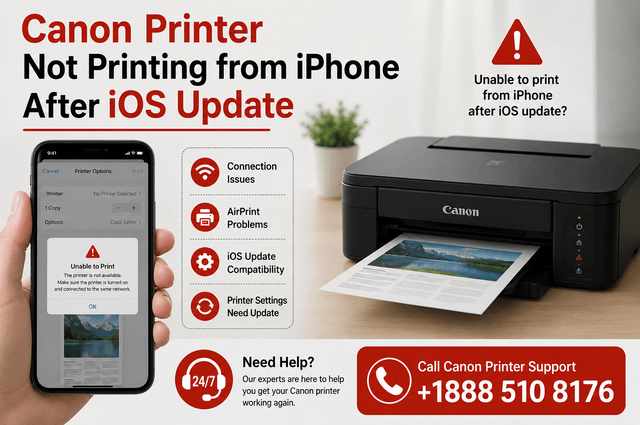

If your Canon printer is not printing from your iPhone after an iOS update, the issue may be caused by a changed network setting, AirPrint communication problem, printer connectivity issue, outdated software, or a temporary glitch. In many cases, you can restore printing without replacing the printer or making complicated changes.
An iOS update can sometimes affect how an iPhone communicates with devices on a local Wi-Fi network. If your Canon printer worked normally before updating your iPhone and stopped afterward, start with the basic connection checks before moving to advanced troubleshooting.
Why Is My Canon Printer Not Printing from iPhone After an iOS Update?
Several issues can prevent an iPhone from communicating correctly with a Canon printer. Common causes include:
- The iPhone and printer are connected to different Wi-Fi networks.
- AirPrint cannot detect the printer.
- The printer has lost its wireless connection.
- Local network access is disabled for a printing app.
- The Canon printing app needs an update.
- Printer firmware is outdated.
- A VPN is interfering with local network communication.
- The router is blocking communication between wireless devices.
- The printer is offline or displaying an error.
- The iPhone has retained incorrect network information after the update.
The fastest approach is to test the connection one step at a time.
1. Check the Canon Printer’s Wireless Connection
First, confirm that your Canon printer is connected to Wi-Fi.
Look at the printer’s display or wireless indicator. Depending on your Canon model, you may see a Wi-Fi icon, network status, or connection message.
If the printer is disconnected, reconnect it to your home Wi-Fi network.
Also check whether you recently changed your Wi-Fi password, router, or network name. A printer that was configured with the old network information may remain powered on but unable to communicate with your iPhone.
Once the printer reconnects, wait a few seconds and try printing again.
2. Connect the iPhone and Printer to the Same Wi-Fi Network
AirPrint generally requires the iPhone and compatible printer to communicate through the same local network.
On your iPhone, go to:
Settings > Wi-Fi
Check the name of the connected network.
Then check the Wi-Fi network configured on your Canon printer.
If the iPhone is using your main network while the printer is connected to a guest network, the two devices may not be able to find each other.
Connect both devices to the same network and try again.
3. Restart Your Canon Printer and iPhone
A simple restart can clear temporary communication problems. Canon Printer Not Printing
Turn off the Canon printer and disconnect its power cable. Wait about 30 seconds before plugging it back in and turning it on.
Next, restart your iPhone.
After both devices restart, connect the iPhone to Wi-Fi and wait until the printer is fully ready.
Open a photo or document, select the Share option, choose Print, and check whether your Canon printer appears.
4. Check AirPrint on Your iPhone
Many Canon printers support Apple’s AirPrint feature, allowing compatible iPhones to print without installing traditional printer drivers.
To test AirPrint:
- Open a photo, webpage, email, or document.
- Tap the Share button.
- Select Print.
- Tap Select Printer.
- Wait for available printers to appear.
- Select your Canon printer.
- Choose the desired print settings.
- Tap Print.
If the Canon printer appears and successfully prints, the connection is working.
If it does not appear at all, focus on Wi-Fi, network discovery, permissions, and printer configuration.
5. Check Local Network Access
An iPhone can control whether applications are allowed to communicate with devices on your local network.
After an iOS update, it is worth checking these permissions.
Open:
Settings > Privacy & Security > Local Network
Look for the Canon printing application you use and make sure local network access is enabled when the option is available.
Then close and reopen the application and try discovering the printer again.
If local network access is blocked, a printing app may be unable to find a printer even though both devices are connected to Wi-Fi.
Read Also: Unable to Print from iPhone Since Last Firmware Update
6. Update the Canon Printing App
If you use a Canon printing application on your iPhone, open the App Store and check for an available update.
An older version of a printing app may not work correctly with a newer iOS release.
After updating the application:
- Open the app.
- Allow requested permissions.
- Check whether your Canon printer is detected.
- Try printing a small document or photo.
If the printer still does not appear, remove and re-add it through the application if that option is provided.
7. Check for Canon Printer Firmware Updates
Printer firmware can affect wireless connectivity and compatibility.
If your Canon printer has not received a firmware update for some time, check whether a newer version is available for your specific model.
Some Canon printers allow firmware updates directly through their control panel, while others may require Canon software or another setup method.
Follow the instructions for your exact printer model and avoid switching off the printer during an update.
8. Turn Off a VPN Temporarily
If a VPN is active on your iPhone, temporarily disconnect it and test printing again.
A VPN can sometimes change how local network traffic is handled. As a result, the iPhone may have trouble discovering a printer on your home network.
If the Canon printer works immediately after disconnecting the VPN, check the VPN application’s settings for local network access or device communication options.
9. Check for Printer Errors
Your iPhone may send the print job correctly, but the Canon printer may be unable to complete it.
Look at the printer’s display for messages such as:
- Paper jam
- No paper
- Ink-related warning
- Cartridge problem
- Cover open
- Offline
- Network error
- Printer error
Resolve the displayed error before sending another print job.
Also check that paper is properly loaded and that the printer is not paused.
10. Try Printing a Different File
If your Canon printer appears in the iPhone’s printer list but a particular document will not print, the problem may be related to the file or application.
Try printing a simple photo.
If the photo prints successfully, test another document.
This helps determine whether the problem affects the printer connection or only a particular file type, document, or application.
11. Forget and Reconnect to Wi-Fi
If the iPhone’s Wi-Fi connection became unreliable after the iOS update, forgetting and reconnecting to the network can sometimes help.
On your iPhone:
- Open Settings.
- Tap Wi-Fi.
- Tap the information button next to your network.
- Select Forget This Network.
- Confirm.
- Select the Wi-Fi network again.
- Enter your password.
- Reconnect.
After reconnecting, test the Canon printer through AirPrint.
Remember that forgetting a network means you will need to enter its password again.
12. Restart Your Wi-Fi Router
The router manages communication between your iPhone and wireless printer.
If both devices are connected but cannot see each other, restart the router.
Disconnect the router’s power, wait briefly, and reconnect it. Give the network enough time to become available again.
Then reconnect your iPhone if necessary and check the printer.
If the printer repeatedly disappears from the iPhone, check whether your router has guest-network isolation, client isolation, or similar features that prevent wireless devices from communicating with one another.
13. Move the Printer Closer to the Router
A weak Wi-Fi signal can make wireless printing unreliable.
If the Canon printer is located far from the router, behind several walls, or in an area with poor wireless coverage, move it closer temporarily.
Then test printing from the iPhone.
If printing becomes reliable after moving the printer, the issue may be related to Wi-Fi signal strength rather than iOS itself.
14. Remove and Add the Printer Again
If you use a Canon printing application and the printer is listed but does not respond, removing and re-adding it may refresh the connection.
Open the application and locate the printer management or device section.
Remove the existing printer if the app provides that option. Then add the printer again while both devices are connected to the same Wi-Fi network.
This can clear outdated printer information and establish a fresh connection.
15. Reset Network Settings on the iPhone
If the problem continues after trying the basic solutions, resetting the iPhone’s network settings may help.
The option is generally located under:
Settings > General > Transfer or Reset iPhone > Reset > Reset Network Settings
Be aware that this removes saved Wi-Fi networks and passwords and resets other network-related configurations.
Before using this option, make sure you know your Wi-Fi password.
After the reset, reconnect the iPhone to your wireless network and try AirPrint again.
16. Check Whether the Canon Printer Works With Another Device
Testing the printer with another device can help identify the source of the problem.
If the Canon printer successfully prints from another computer or mobile device, the printer is probably functioning normally.
In that case, concentrate on the iPhone’s network connection, permissions, applications, and iOS configuration.
If the printer cannot print from any device, investigate the printer’s wireless connection, hardware status, paper supply, ink or toner, and network configuration.
What If My Canon Printer Appears but Does Not Print?
A printer that appears in the AirPrint list but does not produce a page may have a different problem than a printer that cannot be discovered.
Start by canceling the pending print job.
Then check:
- Printer status
- Paper supply
- Ink or toner
- Error messages
- Wi-Fi connection
- Printer queue
- iPhone connection
Restart the printer and iPhone before sending a new print job.
It is also useful to try printing a basic photo. If that works but a specific document does not, investigate the original document or application.
What If My Canon Printer Not Printing Up in AirPrint?
If your Canon printer does not appear under Select Printer, check the following:
- Confirm AirPrint compatibility for your specific Canon model.
- Make sure the printer is turned on.
- Confirm the printer is connected to Wi-Fi.
- Connect the iPhone to the same Wi-Fi network.
- Restart the printer and iPhone.
- Check local network permissions.
- Temporarily disconnect a VPN.
- Restart the router.
- Update relevant Canon software.
- Check for printer firmware updates.
These steps address the most common reasons an iPhone cannot discover a wireless printer.
Should You Factory Reset the Canon Printer?
A factory reset should not be the first solution.
Resetting the printer can remove wireless settings and other configurations, meaning you may need to set up the printer again.
Before performing a factory reset, try restarting the printer, reconnecting it to Wi-Fi, restarting the router, checking AirPrint, updating software, and verifying iPhone permissions.
If you eventually need to reset the printer, use the instructions for your exact Canon model because the procedure can vary.
How to Prevent Future iPhone Printing Problems
Once printing starts working again, a few simple habits can reduce the chance of the problem returning.
Keep your iPhone updated, but also check that your printer’s firmware and printing applications remain current.
Avoid moving the printer between different Wi-Fi networks without updating its network configuration.
Keep the printer within a reasonable range of your router and avoid relying on a guest network for wireless printing.
If an iOS update causes printing problems again, first check Wi-Fi and AirPrint before assuming the printer has failed.
Final Thoughts
When a Canon Printer Not Printing from iPhone After an iOS Update, the cause is often a communication or configuration issue rather than a serious printer failure. The update may have affected network permissions, application compatibility, or the way the iPhone discovers local devices. Start by confirming that the iPhone and Canon printer are connected to the same Wi-Fi network. Then restart both devices, test AirPrint, check local network permissions, update the Canon printing application, and verify the printer’s network status.