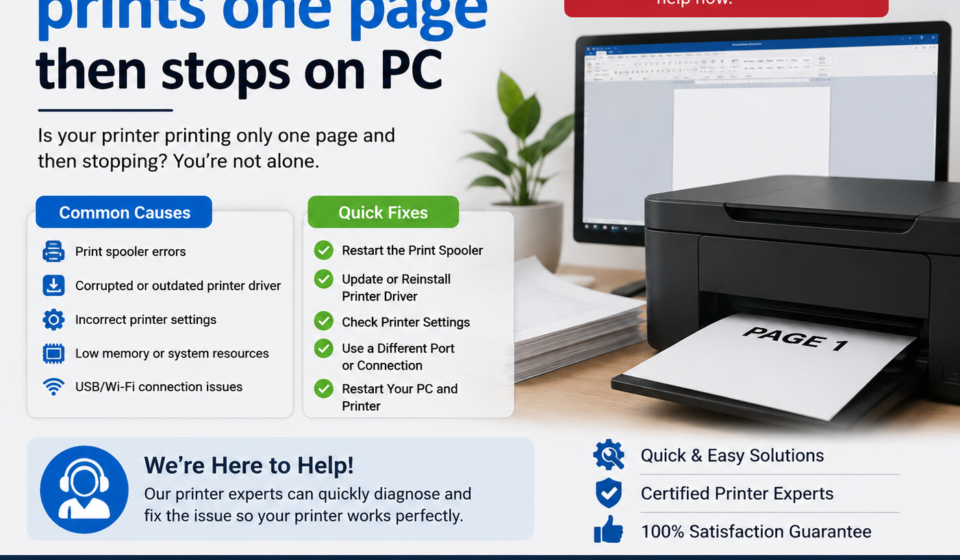

When a printer only prints one page then stops on PC, the printer may be receiving the first part of the document correctly but failing to continue with the remaining pages. This can happen because of a stuck print queue, incorrect printer settings, a communication problem, an outdated or damaged driver, a large or complex document, or an issue with the application sending the print job. Fortunately, many cases can be resolved by checking the print queue, restarting the devices, reviewing print settings, and testing the printer with a simple document.
Quick Answer
If your printer prints one page and then stops, first cancel the remaining print jobs and restart both the printer and PC. Check whether the document is being sent to the correct printer and make sure options such as Print Current Page or an incorrect page range are not selected. If the problem continues, test another document, check the printer connection, update or reinstall the correct printer software, and investigate whether the issue occurs only with one application or file.
What Does This Mean?
The phrase “printer only prints one page then stops on PC” usually means that a multi-page print job starts normally but does not finish.
For example, you might send a 10-page document to the printer. The first page comes out correctly, but the printer then stops. The remaining pages may stay in the computer’s print queue, disappear without printing, or show a pending or error status.
This distinction is important because the printer may not actually have a hardware problem.
Printing involves several steps:
- An application creates the print job.
- The operating system processes the job.
- The printer driver converts the information into a format the printer understands.
- The computer sends the data through USB, Wi-Fi, Ethernet, or another supported connection.
- The printer processes and prints the pages.
A failure at any point can interrupt a multi-page job.
If a printer consistently prints the first page and then stops, testing a different document is especially useful. If another document prints correctly, the original file or application may be responsible. Every multi-page document stops after page one, the problem is more likely related to the printer, connection, driver, queue, or configuration.
Common Causes
Several problems can produce this behavior.
1. A Stuck Print Queue
A previous document may be stuck in the queue. When another print job is sent, the operating system may struggle to process the jobs correctly.
2. Incorrect Page Settings
The application may be configured to print only a specific page or range. Settings can vary between applications, so check the print dialog carefully.
3. Printer Driver Problems
The driver controls communication between the PC and printer. A damaged, outdated, incompatible, or incorrectly configured driver can interfere with multi-page printing.
4. Wireless or USB Communication Problems
A temporary connection problem may allow the first page to reach the printer but interrupt communication before the remaining pages are transferred.
5. A Problematic Document
A particular PDF, spreadsheet, web page, or word-processing document may contain formatting, graphics, fonts, or other elements that cause a print job to behave differently.
6. Application-Specific Problems
If printing works from one program but stops after one page in another, the application or its print configuration may be the source of the problem.
7. Printer Memory or Processing Limitations
Some documents are more demanding than others. Large graphics, complex layouts, or high-resolution content may require more processing than a simple text document.
8. Printer Software or Firmware Issues
Depending on the printer model, manufacturer-provided software or firmware may affect printing performance. Updates should always match the exact printer model and operating environment.
Symptoms vs. Possible Causes
| Symptom | Possible Cause | Recommended First Check |
|---|---|---|
| First page prints, then nothing | Queue or communication issue | Check the print queue |
| First page prints from every document | Driver or connection problem | Test connection and driver |
| Only one particular file has the problem | Document or application issue | Print another file |
| PDF prints one page only | PDF/application settings | Check PDF print settings |
| Word document stops after page one | Application or driver issue | Test another document |
| Wireless printer stops midway | Network communication issue | Check Wi-Fi connection |
| USB printer stops after one page | Cable or driver problem | Check USB connection |
| Remaining pages stay pending | Queue or spooler issue | Clear and retry the queue |
| Printer stops with an on-screen warning | Printer-side condition | Read the printer display |
| Simple documents work, complex ones fail | Processing or document issue | Test with simpler content |
Step-by-Step Solutions
1. Check the Number of Pages You Are Sending
Before changing drivers or printer settings, confirm that the computer is actually sending all the pages.
Open the application’s print dialog and look at the page range.
Depending on the application, you may see choices such as:
- All pages
- Current page
- Selected pages
- Custom page range
Make sure All Pages or the appropriate range is selected.
Also check the number of copies and other print options.
Why this helps: A print setting can unintentionally limit what gets sent to the printer.
When it may not apply: If the print queue clearly contains all pages but only the first page prints, continue with the next troubleshooting steps.
2. Cancel Stuck Print Jobs
A damaged or stalled job can interfere with later documents.
On your PC, open the printer’s print queue and review the pending documents. Cancel jobs that are no longer needed.
After clearing the queue, send a small test document.
Avoid repeatedly sending the same large document while troubleshooting. This can create several duplicate jobs and make the queue harder to diagnose.
Why this helps: It gives you a clean starting point and removes potentially stalled jobs.
When it may not apply: If the queue remains empty after the first page prints, investigate the connection and printer software.
3. Restart the Printer and PC
Restarting both devices can clear temporary communication problems.
- Save your work.
- Cancel unnecessary print jobs.
- Restart the PC.
- Restart the printer using its normal power controls.
- Wait until the printer finishes its startup process.
- Send a short test document.
Why this helps: Temporary software processes and communication states can sometimes become stuck.
A restart is not a permanent solution for a defective cable, incompatible driver, or hardware failure, but it is a useful early troubleshooting step.
4. Print a Simple Two-Page Document
This is one of the most useful diagnostic tests.
Create a basic document containing a small amount of text. Make it two pages long and print it.
Observe what happens.
- Both pages print: The original document may be the problem.
- Only page one prints: Investigate the printer, connection, queue, and driver.
- No pages print: The issue is broader than the original symptom.
This test helps separate document-specific problems from system-wide printing problems.
5. Try Another Application
If the original document came from Microsoft Word, try printing from another program. If you were printing a PDF, try a simple document from a different application.
For example, you can compare:
- A basic text document
- A PDF
- A web page
- A spreadsheet
If only one application fails, examine that application’s print settings and updates before changing the entire printer configuration.
Why this helps: It identifies whether the problem is application-specific.
6. Check the Printer Connection
The connection between the PC and printer is critical.
For a USB printer:
- Make sure the cable is securely connected.
- Check both ends of the cable.
- Avoid loose connections.
- If available, test another compatible USB port.
For a wireless printer:
- Confirm that the printer is connected to the intended network.
- Check whether the PC is connected to the expected network.
- Consider whether the issue started after a router or Wi-Fi change.
- Move the printer closer to the wireless access point temporarily if signal strength may be a concern.
Why this helps: A communication interruption can stop a multi-page job after the first page.
7. Check the Printer’s Status
Look at the printer itself for warnings or messages.
Check for:
- Paper problems
- Ink or toner warnings
- Cover or tray conditions
- Connection messages
- Maintenance notifications
Do not assume that every printer uses the same terminology. The meaning and location of status information varies by model.
If the printer shows a specific message, use the documentation for that exact model rather than applying a generic fix.
8. Check Paper Handling
Although a paper problem may seem unrelated to printing only one page, it is worth checking.
Make sure:
- The paper tray contains paper.
- Sheets are loaded correctly.
- Paper guides are positioned properly.
- The paper is not severely curled or damaged.
- The selected paper size matches the loaded paper where applicable.
If the printer physically prints page one and then stops because of a paper-related condition, the printer may display a warning or require user action.
9. Review Print Preferences
Open the printer’s preferences and review the available settings.
Pay particular attention to:
- Paper size
- Orientation
- Duplex printing
- Print quality
- Page range
- Copies
- Paper source
Try a basic configuration for testing.
For example, if you are using advanced two-sided printing, specialty media settings, or unusual paper sources, temporarily test with standard paper and straightforward print settings.
Why this helps: Certain combinations of settings may behave differently depending on the printer and driver.
10. Check the Printer Driver
If the printer consistently prints one page and stops across different applications, the printer driver becomes an important area to investigate.
A driver allows Windows or another operating system to communicate with the printer. Problems can occur after:
- Operating-system changes
- Printer replacement
- Driver updates
- Manual software changes
- Incomplete installations
Use the printer manufacturer’s official software for your exact model and operating system when updating or reinstalling the driver.
Do not install a driver simply because the printer has a similar name. Model numbers can be important.
11. Test With a Different Connection
If possible, testing another supported connection can help identify the source.
For example, if a wireless printer stops after one page, a temporary USB test may help determine whether the wireless connection is involved. The reverse can also be useful if your printer supports both connection types.
This step is model-dependent. Not every printer supports every connection method.
12. Consider the Document’s Complexity
If simple documents print normally but a particular file stops after page one, examine the original document.
Large or complicated files can contain:
- High-resolution images
- Many graphics
- Embedded objects
- Complex fonts
- Large spreadsheets
- Unusual page layouts
Try creating a copy of the document and simplifying it.
For a PDF, you can also test whether another PDF prints correctly. If other PDFs work, the original file may need to be recreated or exported again.
13. Check for Software Updates
If the problem started recently, consider whether the PC, printer software, or operating system was updated.
Updates can occasionally change how devices communicate.
Before making changes, identify the exact printer model and operating system. Follow manufacturer-specific instructions rather than installing unrelated software.
14. Use a Printer Test or Diagnostic Page
Many printers offer internal test pages, configuration reports, or diagnostic functions.
If the printer can successfully produce its own internal page, that provides useful information. It suggests that at least some printer-side functions are operating normally.
If the internal test also fails, the issue may be more closely related to the printer itself.
The exact test procedure differs significantly between printer models.
Solution vs. Difficulty vs. Estimated Time
| Solution | Difficulty | Estimated Time |
|---|---|---|
| Check page range | Easy | 2–5 minutes |
| Clear print queue | Easy | 5–10 minutes |
| Restart printer and PC | Easy | 5–10 minutes |
| Print a simple test document | Easy | 3–5 minutes |
| Test another application | Easy | 5–10 minutes |
| Check USB/Wi-Fi connection | Easy | 5–15 minutes |
| Check paper and printer status | Easy | 3–10 minutes |
| Review print preferences | Easy | 5–10 minutes |
| Update printer software/driver | Moderate | 10–20 minutes |
| Reinstall printer software | Moderate | 15–30 minutes |
| Diagnose persistent hardware problems | Advanced | Varies |
These times are estimates. Printer menus and software installation procedures differ by manufacturer and model.
Tips to Prevent the Problem
Once you have restored normal printing, a few habits can help reduce similar problems.
Keep the Print Queue Clean
Avoid sending the same document repeatedly when the first job is already stuck. Clear the queue and identify the cause before creating additional jobs.
Use the Correct Printer
If several printers are installed, check the selected printer before printing important documents.
Maintain a Stable Connection
For wireless printers, avoid unnecessary changes to your network configuration. If the printer frequently disconnects, investigate the network rather than repeatedly reinstalling the printer.
Keep Printer Software Compatible
Use manufacturer-supported drivers and software that match your printer model and operating system.
Test Large Documents Before Important Printing
If a document contains many pages or complex graphics, print a few pages first. This can reveal a problem before you attempt a large print run.
Use Suitable Paper
Load paper according to the printer’s specifications. Poor-quality or damaged paper can cause feeding and printing problems.
Do Not Ignore Printer Warnings
If the printer displays a warning, address it before sending another large print job.
Keep the Exact Printer Model Information
When searching for technical instructions, the full model number can make a major difference. Two printers from the same product family may have different drivers, menus, and troubleshooting procedures.
Frequently Asked Questions
1. Why does my printer only print one page and then stop?
The cause could be a stuck print queue, connection problem, incorrect print setting, driver issue, problematic document, or printer-side condition. Start by testing a simple two-page document.
2. Why does my printer print the first page but not the rest?
If the first page prints successfully, the printer is receiving at least part of the job. The remaining data may be interrupted by a communication issue, queue problem, driver problem, or document-specific error.
3. Why does my printer print one page at a time?
If you have to manually start each page, check whether the printer is waiting for user action, whether paper handling is correct, and whether special print settings are enabled. Exact behavior varies by model.
4. Could the print queue cause my printer to stop after one page?
Yes. A stalled or corrupted print job can interfere with subsequent pages or documents. Clearing the queue and testing with a fresh, simple document can help determine whether the queue is involved.
5. Why does a PDF print only one page?
Check the PDF application’s page-range settings first. If other PDFs print normally, the individual file may contain formatting or content that is causing the problem.
6. Why does Word print only the first page?
Check the print range and application settings. Then test another Word document and a document from another application. If other applications work, the issue may be related to Word or the particular document.
7. Can a bad printer driver cause only one page to print?
Yes, driver-related communication problems can affect how print jobs are processed. If the problem happens across multiple documents and applications, checking the correct driver is reasonable.
8. Can Wi-Fi cause a printer to stop after one page?
Yes. A wireless connection can become unstable or lose communication during a print job. Check the printer’s network connection and test whether the problem occurs with other documents.
9. Should I reinstall my printer if it only prints one page?
Not necessarily. Start with the print settings, queue, connection, and a simple test document. If those checks do not resolve the issue, reinstalling the correct manufacturer-supported software may be appropriate.
10. Why does a simple document print but a large document stops?
A large or complex document may require more processing or data transfer. Test the same printer with smaller files and simplify the problematic document if possible.
11. Does duplex printing cause a printer to stop after one page?
It can sometimes introduce additional variables because the printer has to handle both sides of the page. If duplex printing is enabled, test the same document with standard single-sided printing where supported.
12. What should I do if nothing fixes the problem?
If the printer consistently stops after one page across different documents, applications, and connections, consult the troubleshooting documentation for the exact printer model. Persistent problems may require manufacturer or qualified technical service, particularly if the printer shows hardware-related symptoms.
Final Thoughts
When a printer only prints one page then stops on PC, do not immediately assume that the printer needs repair. Start by checking the page range, clearing the print queue, restarting the PC and printer, and testing a simple two-page document.
Next, determine whether the problem affects every document or only one file or application. Check the USB or wireless connection, printer status, paper handling, print preferences, and driver. If simple documents print correctly while complex files fail, focus on the document or application rather than replacing printer hardware.
Because printer software, menus, and supported features vary by model, always use instructions that match your exact printer and operating system. If the issue remains after reasonable software and connection troubleshooting, especially across multiple devices or connection methods, the problem may require model-specific technical diagnosis.