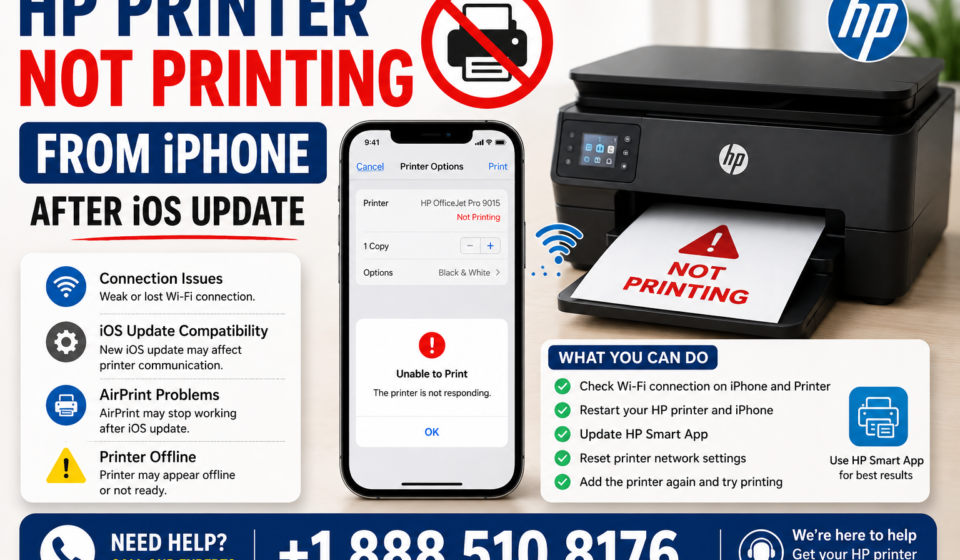

If your HP printer is not printing from your iPhone after an iOS update, the problem is often related to AirPrint settings, Wi-Fi communication, printer discovery, or outdated printer software. An iOS update can sometimes change network permissions or interrupt the connection between your iPhone and printer. Fortunately, most connection issues can be resolved with a few simple checks.
Why Is My HP Printer Not Printing from iPhone After an iOS Update?
After updating iOS, your iPhone may temporarily lose communication with your HP printer. The printer might still appear connected to Wi-Fi, but your iPhone may no longer detect it through AirPrint.
Common reasons include:
- iPhone and printer are connected to different Wi-Fi networks
- AirPrint cannot detect the HP printer
- Wi-Fi connection needs to be refreshed
- The printer is offline or asleep
- iOS network permissions have changed
- Printer firmware or software needs an update
- VPN or security settings are interfering with communication
- The printer’s network settings have become corrupted
- The selected paper size or printer settings are incorrect
1. Check the Wi-Fi Connection
Start by confirming that both your iPhone and HP printer are connected to the same Wi-Fi network.
On your iPhone:
- Open Settings.
- Tap Wi-Fi.
- Check the name of the connected network.
Then check the printer’s wireless settings from its control panel or network information page.
If your iPhone is connected to a guest network while the printer is connected to your regular home network, AirPrint may not work because the devices cannot communicate properly.
2. Restart Your iPhone and HP Printer
A simple restart can resolve temporary communication problems after an iOS update.
Turn off your HP printer and unplug it from the power outlet. Wait approximately 30 seconds, reconnect it, and turn it on.
Next, restart your iPhone.
Once both devices are ready, connect your iPhone to Wi-Fi and try printing again.
3. Try Printing With AirPrint
Most compatible HP printers can print directly from an iPhone using Apple’s AirPrint feature without requiring a separate printer driver.
To test AirPrint:
- Open a photo, document, email, or webpage on your iPhone.
- Tap the Share button.
- Select Print.
- Tap Select Printer.
- Look for your HP printer.
- Select the printer.
- Choose the number of copies and other available options.
- Tap Print.
If your printer appears but the job does not print, the issue may be related to the printer connection or print queue.
4. Make Sure the Printer Is Online
Check the printer’s display for messages such as:
- Offline
- Wi-Fi disconnected
- Paper jam
- No paper
- Ink or toner problem
- Connection error
Resolve any displayed printer error before attempting another print.
Also make sure the printer is not paused or stuck processing an earlier print job.
5. Check Local Network Access
After an iOS update, privacy and network-related settings can sometimes affect how apps communicate with devices on your local network.
If you’re using the HP Smart app, check whether it has permission to access your local network.
Go to:
Settings → Privacy & Security → Local Network
Look for the HP Smart app and make sure local-network access is enabled if the option is available.
Then reopen the app and try detecting the printer again.
6. Update the HP Smart App
If you use HP Smart to manage your printer, make sure the app is updated through the App Store.
An older version of the app may not work correctly with a newer version of iOS.
After updating the app:
- Close HP Smart completely.
- Reopen it.
- Sign in if necessary.
- Check whether your printer is detected.
- Try sending a test print.
7. Check for a Printer Firmware Update
Printer firmware controls many of the device’s wireless and printing functions. If your iPhone has recently received a major iOS update, an older printer firmware version may occasionally cause compatibility problems.
If your printer provides a firmware-update option through its control panel or HP software, check for available updates.
Do not turn off the printer while a firmware update is being installed.
8. Disable a VPN Temporarily
A VPN can sometimes interfere with communication between an iPhone and devices on the local network.
If you have a VPN enabled, temporarily disconnect it and try printing again.
If the printer works after disconnecting the VPN, the VPN configuration may be preventing local-device communication.
Remember to reconnect your VPN when you’re finished troubleshooting if you normally use it.
9. Forget and Reconnect to Wi-Fi
If the connection still doesn’t work, refresh the iPhone’s Wi-Fi connection.
On your iPhone:
- Open Settings.
- Tap Wi-Fi.
- Tap the information icon next to your network.
- Choose Forget This Network.
- Confirm the action.
- Reconnect to the same Wi-Fi network.
- Enter your Wi-Fi password.
- Try printing again.
You may also need to reconnect the HP printer to your wireless network.
10. Remove and Add the Printer Again
If the printer is visible in HP Smart but doesn’t respond, removing and adding it again can establish a fresh connection.
Open the HP Smart app and look for the printer management or device settings. Remove the affected printer if the app provides that option, then select Add Printer and follow the on-screen instructions.
Once setup is complete, try printing a test document.
11. Check the iPhone’s Print Queue
Sometimes a print job becomes stuck and prevents subsequent documents from printing.
If you see a notification indicating that printing is in progress, open the app switcher and look for the Print Center when available. From there, you may be able to cancel a pending print job.
After clearing the queue, try sending the document again.
12. Reset Network Settings as a Last Resort
If the problem began immediately after the iOS update and other troubleshooting methods haven’t helped, resetting network settings may resolve corrupted network configurations.
Keep in mind that this step removes saved Wi-Fi networks and passwords along with other network-related settings.
Before doing this, make sure you know your Wi-Fi password.
You can generally find the reset option under:
Settings → General → Transfer or Reset iPhone → Reset → Reset Network Settings
The exact wording or location can vary depending on your iOS version.
After the reset, reconnect your iPhone to Wi-Fi and test the HP printer again.
What If My HP Printer Doesn’t Appear in the iPhone Print Menu?
If the HP printer doesn’t appear under Select Printer, check these items first:
- Confirm the printer supports AirPrint.
- Make sure the printer is powered on.
- Connect both devices to the same Wi-Fi network.
- Restart the printer and iPhone.
- Disable VPN temporarily.
- Check local-network permissions.
- Update the HP Smart app.
- Restart your wireless router if other devices also cannot find the printer.
If the printer works from another device but not from your iPhone, the problem is more likely related to the iPhone’s network configuration, permissions, or printing settings.
What If the Printer Appears but Nothing Comes Out?
When the printer is listed but doesn’t produce a page, check the printer itself.
Look for:
- Paper supply
- Paper jams
- Ink or toner levels
- Cartridge errors
- Printer error messages
- Pending print jobs
- Wireless connection status
You can also try printing a different file. A damaged document or unsupported content can occasionally cause a particular print job to fail.
Final Thoughts
When an HP Printer Not Printing from iPhone After iOS Update occurs, don’t assume that the printer is defective. The update may have affected Wi-Fi communication, local-network permissions, the HP Smart app, or the printer’s connection.
Start with the basics: verify that both devices use the same Wi-Fi network, restart the printer and iPhone, and test AirPrint. If that doesn’t help, check local-network permissions, update HP Smart and printer firmware, reconnect the printer, and consider resetting network settings as a final troubleshooting step. HP Printer Not Printing from iPhone After iOS Update.