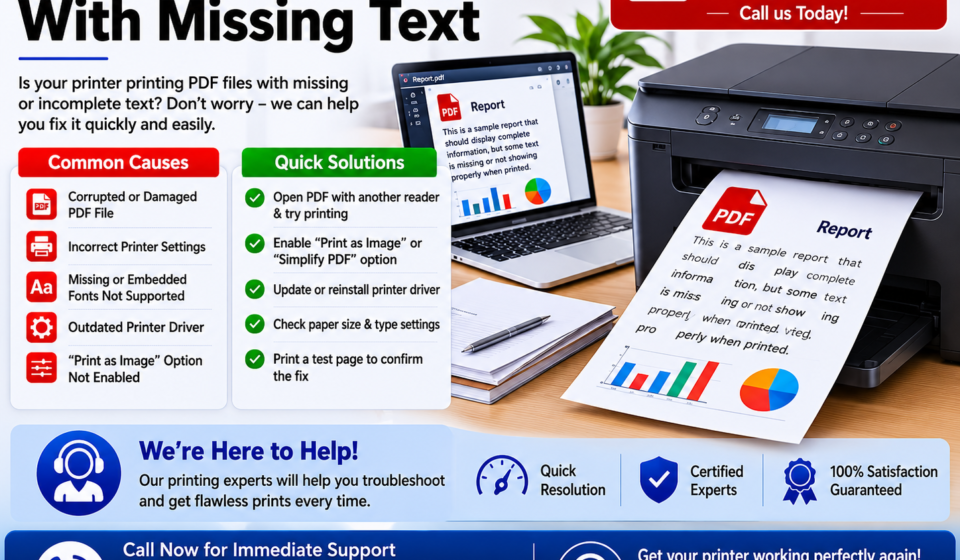

When a printer prints PDF with missing text, the problem is usually related to the PDF itself, fonts, print settings, the PDF viewer, printer drivers, or how the document is being rendered. You may see blank areas, missing words, incomplete lines, symbols instead of letters, or sections that appear correctly on your screen but disappear on paper. The good news is that this issue can often be fixed without replacing the printer.
This guide explains the most common causes and walks you through practical solutions, from simple checks to more advanced troubleshooting. Because printer menus and software vary by model, some steps may look slightly different on your device.
Quick Answer
If your printer prints a PDF with missing text, first determine whether the problem affects only one PDF or every document. Open the file in another PDF reader, print a different PDF, and try the Print as Image option if your PDF application provides it. Updating the PDF reader, reinstalling or updating the printer driver, checking fonts and print settings, and saving a fresh copy of the PDF can also help. If other documents print normally, the PDF is more likely to be the source of the problem.
What Does This Mean?
A PDF is designed to preserve the appearance of a document across different computers and printers. However, the information displayed on your screen still has to be interpreted by the PDF application and converted into printable data before the printer receives it.
If something goes wrong during that process, text may disappear during printing even though it looks normal on the screen.
For example, you might notice:
- Headings print but body text is missing.
- Certain words or letters disappear.
- Text inside tables does not print.
- Some pages print correctly while others are incomplete.
- Text appears on the screen but leaves blank spaces on paper.
- Characters are replaced with boxes or unusual symbols.
- The same PDF prints differently from different computers.
- A PDF prints correctly from one application but not another.
This distinction is important because a printer that produces missing text from one PDF is not necessarily experiencing a hardware failure.
Is the Printer or PDF the Problem?
A quick test can narrow down the cause. Printer Prints PDF With Missing Text
Print a simple text document from a word processor. Then print a webpage or another PDF.
If those documents print correctly but one particular PDF does not, the printer hardware is probably functioning normally. The issue may involve the PDF, its fonts, the PDF reader, or the way that particular file was created.
If text is missing from many different documents, the problem is more likely to involve the printer driver, print processor, connection, printer firmware, or printer hardware.
Common Causes
Several issues can cause a PDF to print without some of its text.
1. Problematic PDF Fonts
A PDF may use fonts that are embedded incorrectly, partially embedded, damaged, or handled poorly by the PDF viewer or printer driver.
A document can therefore look perfect on your monitor while certain characters fail to appear on the printed page.
2. PDF Rendering Problems
PDF software converts the document into information that the printer can understand. Complex layouts, transparency, unusual fonts, layered objects, and vector graphics can sometimes cause rendering problems.
This is one reason the Print as Image option can be useful.
3. Outdated or Corrupted Printer Drivers
The printer driver acts as a translator between your computer and printer. If the driver is outdated, damaged, or incompatible with the current operating system, certain PDF elements may not be processed correctly.
4. PDF Viewer Problems
The application you use to open the PDF can also affect printing. A PDF that fails to print properly from one application may print correctly from another.
5. Damaged PDF File
The PDF itself may be incomplete or corrupted. This can happen when a file is downloaded incorrectly, exported from another program, transferred between systems, or generated by unreliable software.
6. Print Settings
Certain printer or application settings can affect how text is rendered. Scaling, advanced printing options, color settings, and other processing features may occasionally contribute to missing content.
7. Complex or Large Documents
A PDF containing many graphics, embedded fonts, transparency effects, or high-resolution elements may require more processing than a simple document.
Some printers may struggle with especially complex print jobs, particularly when their available memory is limited.
Symptoms vs. Possible Causes
| Symptom | Possible Cause |
|---|---|
| Only one PDF has missing text | Damaged PDF or font issue |
| Several PDFs have missing text | PDF reader or printer driver issue |
| Text disappears but images print | Font or rendering problem |
| One PDF reader fails but another works | Application-specific issue |
| Missing text occurs in every document | Driver, printer settings, or hardware issue |
| Characters become boxes or symbols | Font handling problem |
| Problem began after an OS update | Driver compatibility issue |
| Problem occurs only with complex PDFs | Rendering or printer memory issue |
Step-by-Step Solutions
1. Print a Different Document
Before changing settings, establish whether the problem is limited to one PDF.
Print:
- A plain text document.
- Another PDF.
- A test page from the printer if available.
- A webpage or simple image.
If these documents print normally, focus your troubleshooting on the affected PDF and the software being used to open it.
If every document has missing text, move toward driver, printer, connection, and hardware troubleshooting.
2. Open the PDF in Another Reader
If the PDF currently opens in your default browser or another application, try opening it with a dedicated PDF reader.
Then print the document again.
Different PDF applications can process fonts, transparency, layers, and other document elements differently. If the PDF prints correctly from another reader, the original application may be responsible.
This step is particularly useful when the document looks normal on screen but loses text only during printing.
3. Use “Print as Image”
Many desktop PDF applications provide a Print as Image option in their advanced or print settings.
This option changes how the PDF is sent to the printer. Instead of asking the printer to interpret certain PDF elements directly, the application can render the page as an image before sending it.
To try it:
- Open the PDF.
- Select Print.
- Open the printer’s advanced or additional settings.
- Look for Print as Image or a similarly named option.
- Enable it.
- Print a test page.
Printer Prints PDF With Missing Text. The exact location and wording depend on the PDF application.
This solution can be especially helpful when fonts, transparency, vector objects, or complicated page layouts are causing rendering problems.
However, it may increase print processing time and can sometimes produce a slightly different result from normal PDF printing.
4. Save a Fresh Copy of the PDF
The original file may be damaged or incompletely downloaded.
Try downloading or receiving the PDF again. If someone sent the file to you, ask them to resend it.
You can also open the document and use Save As to create a new copy, then print the new version.
If only the original file has the problem and a newly created copy prints normally, the file itself was likely responsible.
5. Check the PDF for Missing Fonts
If the problem affects particular words, characters, or sections, fonts deserve special attention.
A PDF may rely on fonts that were not properly embedded when the document was created.
If you created the PDF yourself, export it again from the original application. When available, choose an option that embeds fonts or creates a more printer-compatible PDF.
If you received the document from another person, ask them to regenerate the PDF using the original source file.
This is often more effective than repeatedly changing printer settings.
6. Update the PDF Application
An outdated PDF reader may have compatibility or rendering problems.
Check whether your PDF application has an available update. Install the current version from the software provider, restart the application, and test the document again.
If the issue started after an application update, you can also check the application’s support documentation for known printing problems.
7. Update or Reinstall the Printer Driver
The printer driver is one of the most important pieces of software involved in printing.
A damaged or outdated driver can cause unusual output, including missing text.
A practical approach is:
- Identify the exact printer model.
- Visit the manufacturer’s official support site.
- Locate the driver for your operating system.
- Download the appropriate driver.
- Install it according to the manufacturer’s instructions.
- Restart the computer if requested.
- Print the PDF again.
Avoid installing a driver intended for a different printer model just because the model names look similar.
Driver installation procedures vary by manufacturer and operating system.
8. Remove and Re-Add the Printer
If updating the driver does not help, removing the printer from your computer and adding it again can refresh the printer configuration.
This can be useful when the operating system has an incorrect printer configuration or an old driver remains associated with the device.
Before doing this, make sure you know how the printer is connected and have the necessary network or USB information available.
After adding the printer again, print a test document and then retry the PDF.
9. Check Print Settings
Review the print dialog carefully.
Pay attention to settings such as:
- Page size.
- Scaling.
- Orientation.
- Paper source.
- Color or monochrome mode.
- Advanced printer options.
- Page range.
- Application-specific rendering settings.
For troubleshooting, try returning unusual settings to their standard values.
If the PDF contains text that is positioned very close to the page edge, incorrect scaling or paper settings may make parts of the content appear missing.
10. Try Printing at Normal Size
If the document is being scaled automatically, the PDF viewer may alter how objects are positioned on the page.
Try printing at Actual Size, 100%, or the equivalent standard setting. If that does not work, try Fit to Page.
Do not assume one setting is universally better. The correct choice depends on the PDF’s page dimensions and the paper loaded into the printer.
11. Restart the Printer and Computer
A complete restart is simple but worthwhile.
Turn off the printer, wait briefly, and turn it back on. Restart the computer as well.
If several print jobs are stuck in the queue, clear them before sending the PDF again.
This can eliminate temporary print spooler problems and reset communication between the computer and printer.
12. Clear the Print Queue
A damaged or incomplete print job can sometimes interfere with later jobs.
Cancel pending documents from the printer queue. Once the queue is empty, restart the printer and send only one test document.
If the PDF now prints correctly, the problem may have been caused by a stuck or corrupted print job rather than the PDF itself.
13. Try Another Computer
If possible, open the same PDF on another computer connected to the same printer.
This test can help separate computer-specific problems from printer-specific problems.
- Works on another computer: investigate the original computer’s PDF reader, driver, operating system, or settings.
- Fails on both computers: investigate the PDF, printer configuration, or printer firmware.
- Only one PDF fails everywhere: the PDF itself is a strong suspect.
14. Check Whether the Problem Is Hardware-Related
If text is missing from many types of documents, the issue may extend beyond PDF printing.
Look for other symptoms such as:
- Missing sections in ordinary documents.
- Repeated print defects.
- Random characters.
- Incomplete pages.
- Problems after long print jobs.
- Unusual printer noises or repeated interruptions.
At this stage, consult the printer manufacturer’s model-specific troubleshooting instructions. Internal printer components and maintenance procedures vary considerably between models, so avoid disassembling the printer unless the manufacturer specifically recommends it. Printer Prints PDF With Missing Text
Solution vs. Difficulty vs. Estimated Time
| Solution | Difficulty | Estimated Time |
|---|---|---|
| Print another document | Easy | 2–5 minutes |
| Try another PDF reader | Easy | 5–10 minutes |
| Print as Image | Easy | 2–5 minutes |
| Download PDF again | Easy | 2–10 minutes |
| Review print settings | Easy | 5–10 minutes |
| Restart printer and computer | Easy | 5–10 minutes |
| Clear print queue | Easy | 2–5 minutes |
| Update PDF software | Easy | 5–15 minutes |
| Update printer driver | Moderate | 10–20 minutes |
| Remove and re-add printer | Moderate | 10–25 minutes |
| Test from another computer | Moderate | 10–20 minutes |
| Investigate printer hardware | Advanced | Varies |
Tips to Prevent the Problem
Once your PDF printing works again, a few habits can reduce the chance of the problem returning.
Keep Your Printer Driver Current
Use the manufacturer’s official driver when possible, particularly after a major operating system update.
Keep PDF Software Updated
PDF applications receive compatibility and security improvements over time. Keeping the application current can reduce avoidable rendering problems.
Use Reliable PDF Creation Methods
If you create PDFs yourself, export them using reputable software and check the finished file before sending it to someone else.
For important documents, open the final PDF and inspect several pages before printing or distributing it.
Avoid Unnecessary Printer Driver Changes
Installing multiple drivers for the same printer can create confusion. Use the driver appropriate for your exact model and operating system.
Test Important PDFs Before Printing Large Quantities
If a document is lengthy, print one or two representative pages first.
This is especially useful for PDFs containing forms, tables, unusual fonts, or complex graphics.
Keep the Printer Firmware and Software Maintained
Where supported by the manufacturer, periodically check for firmware or software updates. Follow the manufacturer’s instructions carefully because update procedures vary by model.
Frequently Asked Questions
1. Why does my printer print a PDF but leave some text blank?
The most common possibilities include PDF rendering problems, unsupported or incorrectly embedded fonts, a damaged PDF, or a printer driver issue. Try opening the file in another PDF reader and use Print as Image if that option is available.
2. Why does the PDF look normal on my screen but print incorrectly?
Your screen and printer do not process the PDF in exactly the same way. The PDF reader renders the document for display, while printing requires another rendering and communication process. Problems with fonts or complex objects may therefore appear only on paper.
3. Why are only certain words missing from my PDF printout?
If specific words or characters disappear, the PDF’s fonts are a likely area to investigate. The fonts may not have been embedded correctly or may be handled differently during printing.
4. Can a printer driver cause missing text in PDFs?
Yes. A printer driver translates print information from the computer into instructions the printer can process. An outdated, corrupted, or incompatible driver can cause incorrect output.
5. Will “Print as Image” fix missing PDF text?
It can fix some PDF rendering problems, particularly when complicated fonts, transparency, or document elements are involved. It is not a universal solution, but it is a useful diagnostic and troubleshooting option when available.
6. Why does one PDF print correctly while another does not?
PDF files can be created in different ways and may contain different fonts, graphics, layers, and formatting. A printer can therefore handle one PDF correctly while encountering a rendering problem with another.
7. Should I reinstall my printer if only one PDF has missing text?
Usually, no. If ordinary documents and other PDFs print correctly, start by troubleshooting the affected PDF and the PDF application. Reinstalling the printer is more appropriate when the problem affects multiple documents.
8. Why does my PDF print correctly from another computer?
This often suggests that the printer itself is functioning correctly and that the original computer may have a PDF reader, driver, print queue, or configuration problem.
9. Can a damaged PDF cause missing text?
Yes. A damaged or improperly generated PDF can contain elements that do not render correctly during printing. Obtaining a fresh copy or regenerating the PDF from its original source can help.
10. Why does text disappear after I select “Fit to Page”?
Scaling can change how objects are positioned or rendered. Try Actual Size or 100% as a comparison, provided the document’s page size is compatible with the paper in the printer.
11. Could printer memory cause incomplete PDF printing?
Complex print jobs can require significant processing resources. Some printers may have difficulty handling particularly complicated documents. If simple documents work but highly complex PDFs fail, printer processing limitations may be worth considering.
12. What should I do if nothing fixes the problem?
First determine whether the problem occurs with one PDF or all documents. If multiple file types are affected after driver and software troubleshooting, consult the printer manufacturer’s model-specific support documentation or a qualified technician.
Final Thoughts
When a printer prints PDF with missing text, avoid assuming that the printer itself is broken. Start by determining whether the problem affects one PDF or multiple documents. If only one file is affected, test another PDF reader, obtain a fresh copy, inspect font-related issues, and try Print as Image when available.
If several documents have missing text, shift your attention toward the printer driver, print queue, operating system, connection, and printer configuration. Updating or reinstalling the correct driver can often resolve software-related printing problems.
The most useful troubleshooting approach is to change one thing at a time and test after each change. This makes it easier to identify the actual cause instead of applying multiple changes without knowing which one worked. Printer Prints PDF With Missing Text
If the issue continues across different PDFs and applications, follow the troubleshooting guidance for your specific printer model. Manufacturer instructions can differ, particularly for driver installation, firmware updates, advanced print settings, and hardware maintenance.