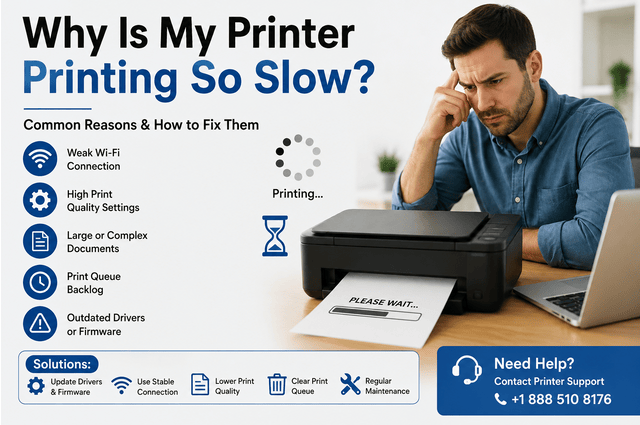

A printer that suddenly starts printing slowly can be frustrating, especially when you need several pages in a hurry. Why is my printer printing so slow? In most cases, the problem is related to print quality settings, a weak wireless connection, outdated drivers, large documents, a crowded print queue, or printer maintenance issues. Fortunately, many slow-printing problems can be fixed with a few simple adjustments.
Common Reasons a Printer Prints Slowly
Printers do not always print at the same speed. The actual printing time depends on the printer model, document type, selected settings, and connection method.
Here are some common reasons your printer may be running slowly:
- High-quality printing is enabled
- The printer is connected through a weak Wi-Fi signal
- The printer driver is outdated
- Large PDFs or image-heavy files are being printed
- Multiple jobs are stuck in the print queue
- Color printing is enabled unnecessarily
- Double-sided printing is selected
- Printer firmware needs an update
- The computer is processing a complicated document
- The printer needs routine maintenance
Identifying which situation applies to your printer can help you solve the problem without making unnecessary changes.
High Print Quality Can Slow Things Down
One of the easiest things to check is the print quality setting. High-resolution printing requires the printer to process more information and can significantly increase the time needed to complete a job.
For ordinary documents, try selecting Draft, Fast, Standard, or Economy mode. Save the highest quality setting for photographs, presentations, or documents where sharp detail is important.
You may notice that your printer becomes considerably more responsive after changing this setting.
Your Wi-Fi Connection May Be the Problem
Wireless printing is convenient, but it depends on a stable network connection. If the printer is far away from the router or the network is congested, print data may take longer to reach the device.
Check that your computer and printer are connected to the correct network. If possible, move the printer closer to the router and try printing again.
You can also test the printer using a USB connection, if supported. If USB printing is noticeably faster, the wireless network may be contributing to the slowdown.
An Outdated Printer Driver Can Affect Performance
The printer driver allows your computer to communicate properly with the printer. If the driver is outdated, corrupted, or incompatible with your operating system, printing may become slower or less reliable.
Check the printer manufacturer’s official website for a driver that matches your exact printer model and operating system.
After installing a compatible driver, restart the computer and printer before testing another print job.
Large PDFs and Images Take Longer to Process
Not all documents require the same amount of processing.
A simple text document is usually easier for a printer to process than a PDF containing dozens of high-resolution images. Large photographs, detailed graphics, transparent objects, and complex fonts can also increase processing time.
If only certain documents print slowly, the document itself may be the reason. Try reducing image resolution or compressing the PDF before printing.
Check the Print Queue
A printer may appear slow when it is actually waiting for an earlier job to finish or become unstuck.
Open the print queue on your computer and check for pending documents. Cancel jobs that are no longer needed and then send a small test document.
If the queue does not clear normally, restarting the printer and computer can refresh the printing system.
Color Printing May Take Longer
If you are printing a basic document that does not need color, consider switching to Black & White or Grayscale.
Color printing can require additional processing and multiple ink or toner channels. While the difference may vary between printer models, grayscale printing can be a useful option when speed matters more than color output.
Double-Sided Printing Can Increase Print Time
Automatic duplex printing is useful for saving paper, but it can add processing and handling time.
If you need a document immediately and do not require two-sided output, try disabling duplex printing and print on one side only.
For large reports or documents, this simple adjustment may reduce the overall printing time.
Restart Your Printer
A printer that has been running for a long time can sometimes experience temporary software, memory, or communication problems.
Turn off the printer, wait briefly, and turn it back on. Restart the computer as well if necessary.
Once both devices are ready, print a small test page. A restart will not fix every problem, but it is a quick way to clear temporary issues.
Update the Printer Firmware
Printer manufacturers periodically release firmware updates to improve compatibility, stability, and performance.
Check your printer’s settings or the manufacturer’s official support application to see whether an update is available.
Follow the manufacturer’s instructions carefully when installing firmware. Do not disconnect or power off the printer while an update is in progress.
Check the Paper Settings
Incorrect paper settings can affect printing speed.
For example, selecting a specialty paper type when you are actually using standard plain paper may cause the printer to use a slower printing process.
Before printing, verify that the selected paper size and type match the paper loaded in the tray. For everyday documents, standard settings are usually the most efficient.
Perform Basic Printer Maintenance
A printer that has been used heavily may require routine maintenance. Dust, paper debris, worn components, or printhead issues can sometimes affect performance.
Depending on your printer model, maintenance options may include printhead cleaning, alignment, roller inspection, or other built-in procedures.
Use the maintenance tools recommended by the manufacturer. Avoid repeatedly running cleaning cycles unless they are necessary, as some inkjet printers can use a considerable amount of ink during cleaning.
Test a Simple Document
One of the best ways to determine why your printer is slow is to perform a basic test.
Print a one-page document containing only text. Then compare its speed with a large PDF or image.
If the simple document prints quickly but complex files take much longer, the printer may be working normally and simply processing more data.
If even a basic text page takes an unusually long time, investigate the connection, driver, print queue, firmware, or hardware.
When Is Slow Printing a Hardware Problem?
Sometimes a slow printer is not caused by software or settings. Older printers can experience mechanical wear that affects their performance.
Consider further troubleshooting if:
- Every document prints slowly
- The printer pauses frequently
- Pages take a long time to feed
- The printer makes unusual sounds
- Printing stops between pages
- The printer repeatedly disconnects
- A test page is also unusually slow
- printer printing so slow
If these symptoms continue after basic troubleshooting, the printer may need professional inspection or replacement of a worn component.
How to Prevent Your Printer From Becoming Slow
A few regular habits can help maintain consistent printing performance.
Keep your printer firmware and drivers updated when appropriate. Remove old jobs from the print queue, use suitable print-quality settings, and keep the printer connected to a stable network.
It is also helpful to avoid sending extremely large files when a smaller version will produce the same result. Regular maintenance based on the manufacturer’s recommendations can also help keep the printer operating properly.
Frequently Asked Questions
Why is my printer printing so slow all of a sudden?
A sudden slowdown can be caused by a changed print setting, network problem, driver issue, stuck print queue, large document, or temporary printer error.
How do I make my printer print faster?
Try selecting Fast or Draft mode, reducing print quality, using a stable wired connection, clearing the print queue, and updating the printer driver.
Does Wi-Fi affect printer speed?
Yes. A weak or congested wireless connection can delay the transfer of print data between your computer and printer.
Why does my printer print text quickly but images slowly?
Images generally contain much more data than plain text. High-resolution photographs and graphics therefore require more processing before and during printing.
Should I replace my printer if it prints slowly?
Not necessarily. Check the settings, connection, drivers, print queue, and firmware first. If the printer remains slow even with simple documents and shows mechanical symptoms, replacement or professional repair may be worth considering.
Conclusion
If you are asking why is my printer printing so slow, start by checking the most common causes. Lowering print quality, clearing the print queue, improving the network connection, updating the driver, and simplifying large documents can often improve performance.
A printer printing so slow is not always a sign that the device is failing. By testing different documents and settings, you can determine whether the problem comes from the printer itself, your computer, the network, or the files you are trying to print.