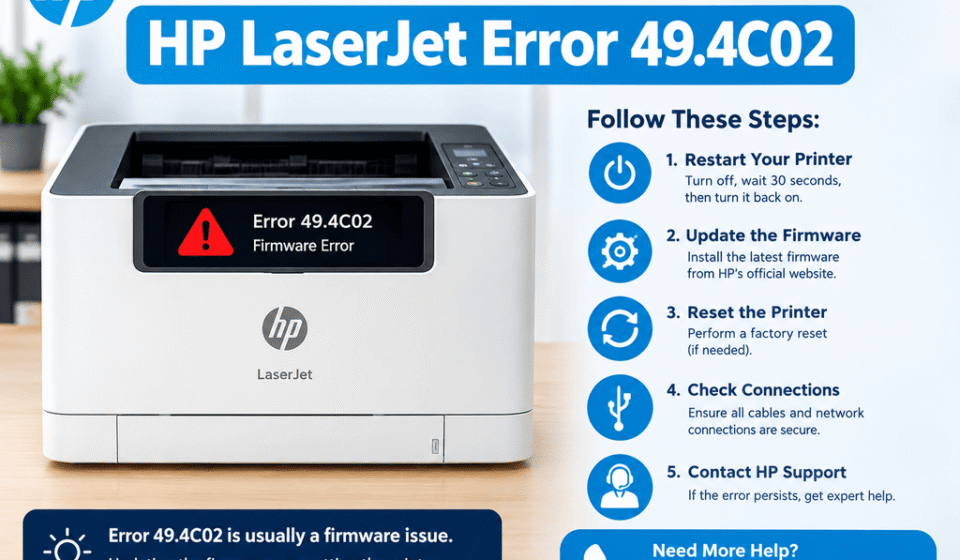

If your HP LaserJet printer displays 49.4C02, the problem is usually related to printer firmware, a corrupted print job, or communication between the printer and the computer. This error can stop printing completely and may cause the printer to restart or become stuck on the error screen. In many cases, clearing the print queue, restarting the printer, and checking for a firmware update can resolve the issue. The exact steps can vary depending on your HP LaserJet model.
Quick Answer
To resolve HP LaserJet error 49.4C02 (Firmware Error), first turn off the printer and disconnect it from the network or computer. Restart the printer and check whether the error returns. If the printer starts normally, clear pending print jobs before reconnecting it. If the error appears when printing a particular document, remove that job and try another file. You can also check HP’s official support resources for a firmware update appropriate for your specific printer model.
What Does This Mean?
The 49.4C02 error is generally associated with a firmware or processing problem in an HP LaserJet printer. Firmware is the software built into the printer that controls functions such as processing print data, communicating with computers, and operating the printer’s hardware.
A problematic print job can sometimes trigger the error. This may happen when the printer receives data that it cannot process correctly. A firmware problem, incompatible print data, network communication issue, or certain printer configuration conditions can also contribute.
The first goal is to determine whether the error happens during startup or only when a particular print job is sent.
Symptoms You May Notice
| Symptom | Possible Cause |
|---|---|
| 49.4C02 appears immediately | Firmware or startup processing issue |
| Error appears after sending a document | Problematic or complex print job |
| Printer restarts repeatedly | Firmware or data-processing problem |
| Error occurs from one computer | Driver, application, or print-job issue |
| Multiple computers trigger the error | Printer firmware, network, or configuration issue |
Common Causes
Several conditions can contribute to a 49.4C02 firmware error:
- Corrupted print jobs waiting in the print queue.
- A document containing complex graphics, fonts, or formatting that the printer has trouble processing.
- Outdated printer firmware.
- Communication problems over a network connection.
- A printer driver or application sending unexpected print data.
- Printer settings or configurations that interact poorly with a particular print job.
- In some cases, an internal printer fault may need professional diagnosis.
Because the exact cause depends on the printer model and circumstances, troubleshooting should start with the simplest reversible steps.
Step-by-Step Solutions
1. Turn the Printer Off and Restart It
Start with a complete restart.
- Turn off the HP LaserJet printer using its power button.
- Wait for the printer to shut down completely.
- Disconnect the power cable from the printer.
- Wait for about 30 seconds.
- Reconnect the power cable.
- Turn the printer back on.
- Wait until it finishes its startup process.
If the error disappears, do not immediately resend the same document. The original print job may still be the source of the problem.
2. Disconnect the Printer From the Network or Computer
If the error returns after a print job is sent, disconnect the printer temporarily from its communication source.
For a network printer, disconnect the network connection temporarily. For a USB-connected printer, disconnect the USB cable.
Restart the printer and check its display.
- If the printer works normally while disconnected, the problem may involve incoming print data or a queued job.
- If 49.4C02 appears even with no computer or network connection, the issue is more likely to involve the printer itself.
3. Clear the Computer’s Print Queue
A corrupted or incomplete print job can continue triggering the error.
On Windows:
- Open Settings.
- Go to Bluetooth & devices > Printers & scanners.
- Select your HP LaserJet printer.
- Open the print queue.
- Cancel pending documents.
- Wait until the queue is empty.
- Restart the printer.
If several computers use the same network printer, check their queues as well. A pending job from another computer could send the problematic data again.
4. Try Printing a Simple Document
After clearing the queue, print a basic text document.
If a simple page prints successfully but one particular PDF, spreadsheet, or graphics-heavy document causes the error, the document or its print-processing settings may be involved.
Try:
- Printing a different document.
- Printing only a few pages.
- Saving the document as a new PDF.
- Using another application to open and print the file.
- Simplifying complex graphics or formatting.
This step helps determine whether the issue is document-specific rather than a general printer failure.
5. Check the Printer Driver
A damaged, incompatible, or outdated driver can sometimes contribute to print-processing problems.
Check the driver installed for your exact HP LaserJet model. If the problem started after a driver change, reinstalling the appropriate driver may help.
Avoid installing a driver intended for a different LaserJet model simply because the printer names appear similar.
6. Check for a Firmware Update
If the printer continues to display the error, check HP’s support resources for firmware applicable to your exact model.
Before updating:
- Confirm the full printer model number.
- Read HP’s firmware-update instructions.
- Make sure the printer has a stable power connection.
- Use the firmware intended for that specific model.
- Do not interrupt the printer during an update.
Firmware menus and update procedures differ among LaserJet models, so follow the instructions provided for your printer.
7. Reconnect the Printer and Test Again
Once the printer starts normally:
- Reconnect the USB or network cable.
- Confirm that the printer is recognized by the computer.
- Send a small test document.
- If successful, try the document that previously caused the error.
If the error returns only when a particular file is printed, investigate that file and its application rather than repeatedly restarting the printer.
8. Consider Advanced Troubleshooting
If HP LaserJet error 49.4C02 (Firmware Error) continues even when there are no pending jobs and the printer is disconnected from external devices, the problem may require model-specific troubleshooting.
A reset or other advanced procedure may be available for some LaserJet models, but these actions can remove custom settings or network configurations. Do not perform a model-specific reset without checking the appropriate instructions for your printer.
| Solution | Difficulty | Estimated Time |
|---|---|---|
| Restart the printer | Easy | 2–5 minutes |
| Disconnect network/USB | Easy | 2–5 minutes |
| Clear print queue | Easy | 5–10 minutes |
| Test another document | Easy | 5 minutes |
| Check/reinstall driver | Moderate | 10–20 minutes |
| Check firmware | Moderate | 10–30 minutes |
| Advanced model-specific troubleshooting | Moderate–Advanced | Varies |
Tips to Prevent the Problem
Once the printer is working again, a few habits can reduce the chance of similar printing problems:
- Keep the printer firmware reasonably current according to HP’s guidance.
- Remove failed or stuck print jobs from the queue.
- Keep printer drivers compatible with the installed operating system.
- Avoid repeatedly resending a document that immediately triggers the error.
- Test unusually complex documents with a small number of pages first.
- Maintain a stable network connection for network printers.
- Record the exact printer model and firmware version when troubleshooting.
If several computers use the same printer, also check whether the problem occurs from all devices. This can help separate a printer-side issue from a problem with one computer or application.
Frequently Asked Questions
1. What is HP LaserJet error 49.4C02?
It is generally a printer processing or firmware-related error. A problematic print job, firmware issue, communication problem, or configuration can cause the printer to stop processing print data.
2. Can restarting an HP LaserJet fix 49.4C02?
Yes, a restart can clear a temporary processing condition. However, if a queued print job causes the error again, the underlying print job or another issue still needs to be addressed.
3. Why does my printer show 49.4C02 after I send a document?
The document may contain print data that the printer cannot process correctly. Complex PDFs, graphics, fonts, or application-generated print data can sometimes be involved.
4. Should I clear the print queue?
Yes. Clearing pending documents is one of the first practical troubleshooting steps because a corrupted job can repeatedly be sent to the printer.
5. Can an outdated firmware version cause this error?
Firmware problems can contribute to 49.4C02 conditions. Check HP’s support information for your exact LaserJet model to determine whether a firmware update is available and appropriate.
6. What if the error appears before I print anything?
If the printer displays 49.4C02 during startup with no computer or network connection, the problem is less likely to be caused by a specific print job. Continue with model-specific troubleshooting or consult HP documentation.
7. Can a printer driver cause a 49.4C02 error?
A driver or the way an application generates print data can contribute to printing problems. Checking the correct driver for your exact model can help isolate the issue.
8. Does this error mean the printer hardware is damaged?
Not necessarily. A 49.4C02 message does not by itself prove that a hardware component has failed. Software, firmware, print data, and communication issues should be investigated first.
9. Will resetting the printer fix 49.4C02?
A reset may help in some circumstances, but the procedure and consequences vary by model. It can also remove customized settings, so use a reset only when the instructions for your particular printer support it.
10. Why does the error return after I clear the queue?
Another computer, application, or network device may be sending the same problematic job again. Check all devices that use the printer and test printing from a clean, simple document.
Final Thoughts
Knowing how to resolve HP LaserJet error 49.4C02 starts with identifying whether the problem comes from a print job, computer, network connection, firmware, or the printer itself. Begin by restarting the printer, clearing all pending jobs, disconnecting external connections, and testing a simple document. If the error continues, check the correct driver and firmware for your specific LaserJet model. Persistent errors that occur without any incoming print data may require model-specific service or technical diagnosis.